
Projects & Graph
Group your work into projects and see how everything links, for you and for AI agents.
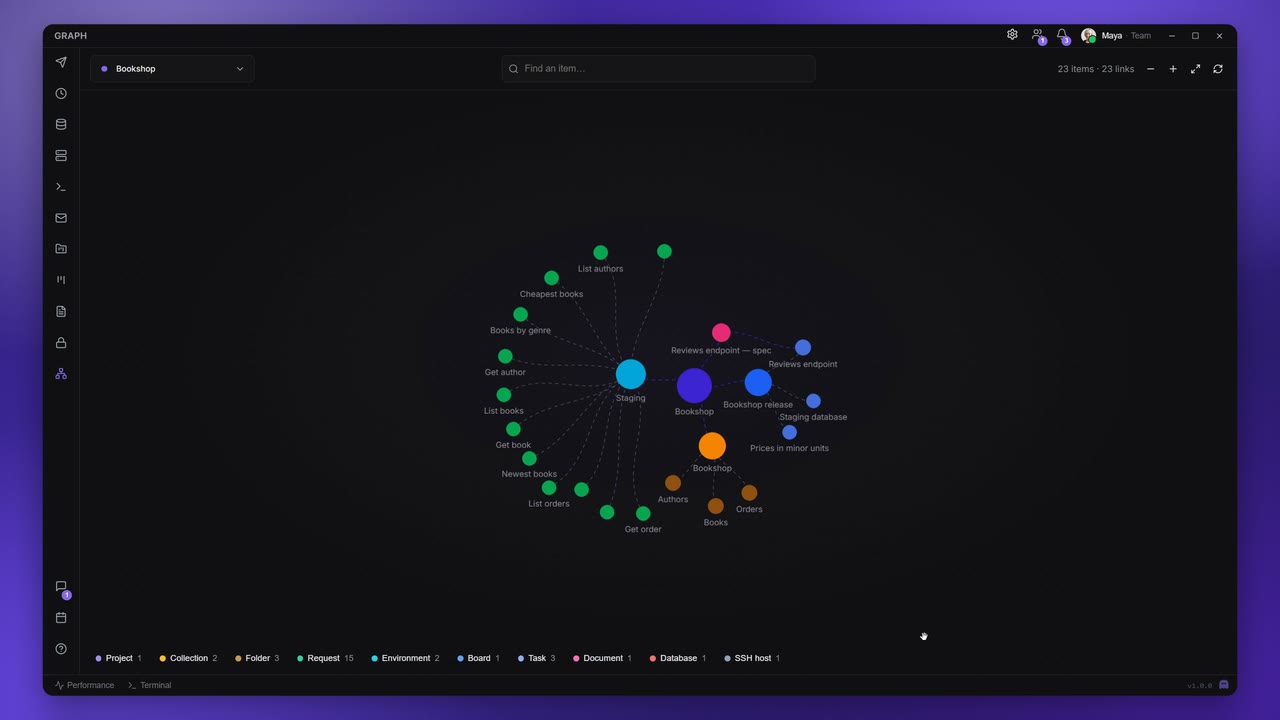
Your work is spread over collections, boards, documents, the calendar and the Vault. Projects gather the pieces that belong together, and the Graph draws all of them as one map, with the links between them. You use it to answer questions like "which requests break if I change the Staging environment?", and an AI agent connected over MCP uses the same map to understand your project.
Projects
A project is a list of references. It owns nothing: adding a request to the "Checkout" project doesn't move or copy it, and one item can be in several projects. Deleting a project removes only the project and its links; the items stay where they are.
Open Projects on the rail. It shows a card for every project.
Create a project
- Click the New project tile at the end of the grid.
- Enter a Name and, if you like, a Description.
- Each project gets a colour gradient. Click New random gradient until you like it.
- Click Create. The button stays disabled until the project has a name.
If you can edit in a team, Belongs to creates the project for that team instead of only for you. Everyone in the team sees a team project, and it holds only that team's boards, tasks, document folders, documents and appointments. The card says which team it belongs to. Team viewers see it but can't change it.
Hover a card for Open in graph, Edit project and Delete project. The card shows how many items the project has; hover the count for a breakdown by type. Filter projects… above the grid narrows the cards.
Add items to a project
Open a project, then use its one search field, Search this project or add from your workspace… (press / to jump into it):
- In this project lists matching items that are already in it, with Open;
- Add from your workspace lists everything else, with Add.
Use ↑ ↓ to move, Enter to open or add and Esc to clear. The chips above the list (All and one per type) filter it, and the × on a row, Remove from project, takes the item out again.
You can add collections, folders, requests, environments, boards, tasks, document folders, documents, appointments, databases and SSH hosts. A project can't contain another project. Databases and SSH hosts only show up while the Vault is unlocked.
What the Graph shows
Open Graph on the rail. Every item is a dot, coloured by type, and every link is a line.
Item types: Project, Collection, Folder, Request, Environment, Board, Task, Document folder, Document, Appointment, Database and SSH host.
- Database and SSH host come from the Vault, so they appear only while it is unlocked. When it is locked, a chip says "Vault locked — connections and hosts are hidden", with Unlock.
- A recurring appointment is one item, not one per occurrence.
The Graph shows your boards, documents, calendar and projects, those of every team you belong to, and the collections and environments you have loaded. Boards and documents you keep only on this device are in it too. A team item says Team · name in its details and in search. When you leave a team, its items leave the Graph. It rebuilds itself about half a second after anything changes, and when the Vault locks or unlocks.
Automatic links
Apiboo draws these for you:
| Link | Between | Shown as |
|---|---|---|
| contains | A collection or folder and what's in it; a board and its tasks; a document and its subpages | Contains / Part of |
| uses | A request and the environment that defines a {{variable}} it uses | Uses variables from / Variables used by |
| mentions | A document and another document it links to | Links to / Linked from |
For uses, Apiboo looks at a request's URL, params, headers, cookies, body, form fields and auth. It does not look inside scripts, and it skips dynamic variables, the ones whose name starts with $.
Your links
Some connections only you know about, for example that a document describes an endpoint. Draw those yourself:
| Link | Shown as |
|---|---|
| Related to | Related to / Related to |
| Covers | Covers / Covered by |
| Depends on | Depends on / Needed by |
| Documents | Documents / Documented by |
Adding an item to a project is a link too (the project contains it).
The four kinds of link above stay personal, even between team items: your teammates don't see them. What you add to a team project, the whole team sees.
To draw a link:
- Start it in one of three ways: hold Shift and drag from an item; right-click an item → Link to…; or click Link in the details panel. A bar says "Linking … — click the item to link it to".
- Click the other item. A menu offers the kinds of link that fit: Related to, Covers, Depends on or Documents between two items; Add to "…" when the target is a project.
- Pick one. Esc, a right-click or a click on empty space cancels.
Only links you drew can be removed: open the item's details and click the × on the connection (Remove link). Automatic links follow your data; to remove one, change the data.
Use the Graph
| Control | What it does |
|---|---|
| Show project (top left) | Shows one project, or Everything |
| Show scope (next to it, once you are in a team) | Shows Everything, only your Personal items, or one team's |
| Find an item… (Ctrl/Cmd+F) | Lists matching items as you type and highlights them. Enter or Show moves the view to one. A match marked hidden by filter clears that filter when you pick it. |
| Item-type chips (bottom) | Click a type to show or hide it; each chip shows its count |
| Zoom out, Zoom in, Fit to view | Also: the mouse wheel zooms, dragging empty space pans |
| Rebuild graph | Builds the map again now |
Drag an item to move it; Apiboo remembers where you put it.
- Click an item to select it and open its details.
- Double-click it to open it where it lives. An SSH host asks first: "How do you want to connect to this host?", Browse files or Open a terminal.
- Right-click it for Open, Show details, Center, Link to… and adding it to or removing it from a project. Right-click empty space for Fit to view and Rebuild graph.
The details panel
The panel shows the item's type, name and where it lives, with Open, Center and Link. Below:
- Projects: the projects it is in, as chips (× removes it from one), and Add to project….
- Connections: everything linked to it, grouped by kind of link. Switch between All, Yours (links you drew) and Automatic. A uses link shows the
{{variable}}it comes from. With more than eight connections, Filter connections… appears.
Questions the Graph answers
- Which requests break if I change the Staging environment? Select Staging and look at Variables used by in its connections.
- Which docs cover this endpoint? Select the request and look for Documented by and Covered by, the links you drew.
- Everything in the Checkout project. Pick Checkout under Show project.
The Graph for AI agents
An agent connected to the MCP Server can read the same map, once you turn on the Graph read permission. It then has four tools:
| Tool | What it does |
|---|---|
graph_search | Finds items by name and/or type (up to 100) |
graph_neighbors | The items around one item, 1 to 3 links deep, filtered by link kind, type or automatic/yours if it likes |
graph_path | The shortest path between two items, up to 8 links (6 unless it asks for more) |
graph_project | A whole project: its items, the items one link outside it and the links |
This is where an agent starts on a new task: it sees how the work connects instead of guessing, and it treats the links you drew as your intent. For example, before it edits a request it can see which documents describe it and which tasks depend on it.
Databases and SSH hosts never appear in MCP results, and links to them are left out. Team items are included for the teams you belong to: each item names its scope (personal or team:<id>), never the team's name, and graph_search and graph_neighbors can narrow to one scope. Collections and environments are included only when the open workspace is one the agent may read. See Context: what the agent can read.