
Boards
Lists, tasks, labels and comments, and sharing a task to chat.
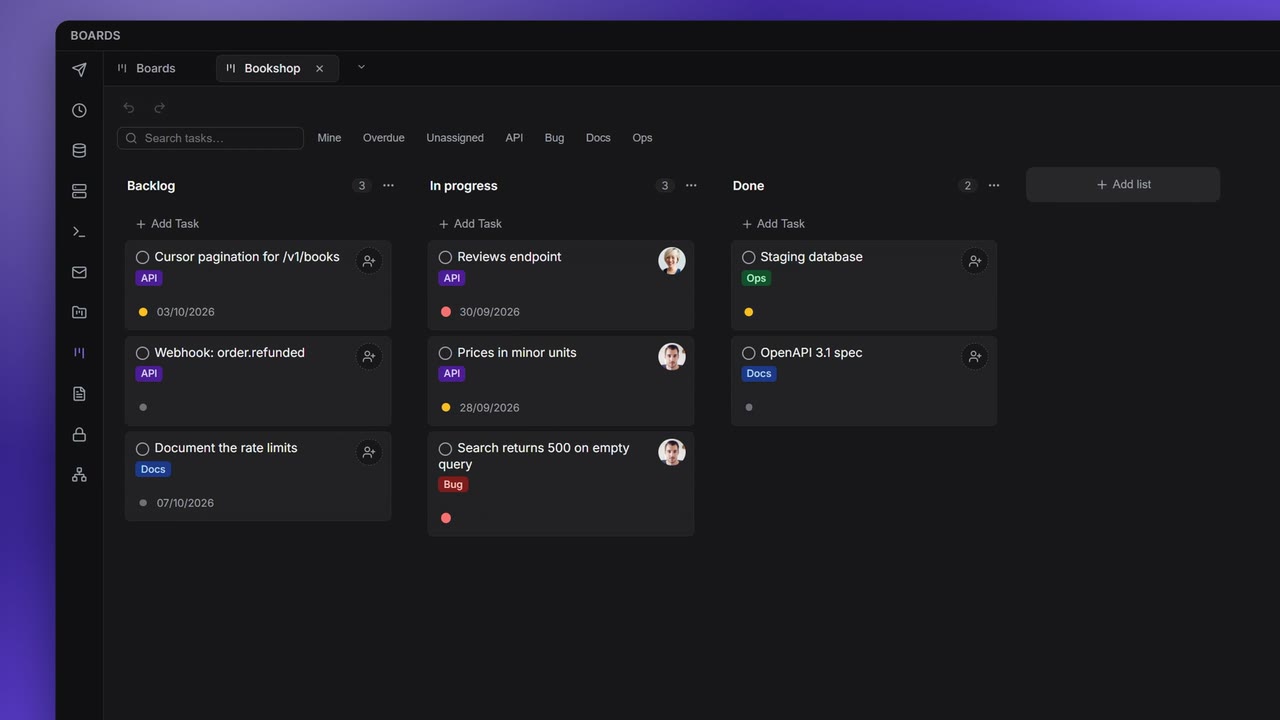
Boards are Apiboo's task manager: lists of task cards you move from left to right as work gets done. A board is either private (yours) or a team board that every member of the team sees and edits live.
Open Task Manager on the rail. The Boards tab shows a tile for every board.
Create a board
- Click the New board tile. The Create board modal opens.
Choose the Visibility:
- Private: only you.
- Team: owned by the team and live for all its members. You need to be an editor, admin or owner on a team to pick it.
- Enter a Name, for example "Bookshop API", and an optional Description.
- Pick a Color (New random gradient rolls another one).
- Add Labels now or later (see Labels).
- Show completed tasks decides whether tasks marked done stay visible.
- Click Create.
A new board starts empty. Click + Add list to make your first column.
On the Boards tab, Filter boards… (Ctrl/Cmd+F) narrows the tiles. Hover a tile for Edit board, Delete board, Share with team and, for private boards, Move to cloud / Move to this device.
Lists
- + Add list adds a column and puts its name straight into edit mode.
- Click a list's title to rename it.
- The list's ⋯ menu has Rename and Delete. Deleting a list deletes its tasks.
- Drag a list by its header to reorder the columns.
Tasks
- Click + Add Task at the bottom of a list.
- Type the title and press Ctrl/Cmd+Enter to save it (Esc cancels). In the List view, Enter saves.
- Drag the card to another list, or up and down within one. Dropping a card on + Add list creates a new list with the card in it.
On a card:
| Control | What it does |
|---|---|
| The circle | Mark as done / Mark as not done |
| The priority dot | Click to cycle Low → Medium → High |
| Due date | Shown on the card; red when it is overdue |
| Label chips | The task's labels |
| Avatar | The assignee (team boards) |
| Send to chat | Team boards: send the task to a teammate (see Send a task to chat) |
| Edit, Delete | Open the task, or delete it |
The board's toolbar switches between Kanban and List view, and has Undo (Ctrl+Z) and Redo (Ctrl+Shift+Z or Ctrl+Y). On a team board, the avatars of teammates looking at the same board appear there.
Task details
Click a task's title to rename it right on the card. To open the task, use the pencil button (Edit) on the card. The window shows which list it is in, and:
- Description: a rich editor, the same one as in Documents. Type / for headings, lists, code, tables, images and YouTube or Vimeo videos (see Slash commands).
- Priority: Low, Medium or High.
- Labels: the board's labels, toggled on or off.
- Due date.
- Assignee and Owner: on team boards.
- Comments: write in Add a comment… and send with Ctrl/Cmd+Enter. On a team board, type @ to mention a teammate. Each comment has Delete.
Changes save as you go; the footer shows Saving… and Saved. The footer also has Send to chat (team boards) and Delete task. Esc closes the window.
Labels
Labels belong to a board. Open Board settings (the gear in the toolbar):
- Type a name in New label… and click Add label.
- Pick its colour: gray, red, amber, green, blue or purple.
- Rename a label in place, or remove it with its ×.
Filter a board
The filter bar above the lists narrows the cards:
| Filter | Shows |
|---|---|
| Search tasks… | Tasks whose text matches |
| Mine | Tasks assigned to you (team boards) |
| Overdue | Tasks past their due date |
| Unassigned | Tasks with no assignee (team boards) |
| A label chip | Tasks with that label. Several labels show tasks with any of them. |
It shows how many tasks match, for example "4 of 12". While a filter is on you can't reorder cards ("Reordering off while filtered"); Clear turns the filters off.
Team boards
A team board is stored in the cloud and updates live for everyone on the team. Share with team on a private board's tile moves it to a team: it asks you to pick the team and says the board "will move to the team and become realtime for all members". Team viewers see a View only badge and can't change anything.
Send a task to chat
On a team board, Send to chat (on the card or in the task's details) opens Send task to a teammate. It lists the people on this team you already have a direct message with; pick one and the task is sent as a card. Only they can read it, and only if they are on the team. They click the card to open the task right in the chat. See The task quick view.
Boards and AI agents
With the Boards permission on the MCP Server, an AI agent can read your boards to see what is in progress and what is blocked, and, with the write grant, create boards and lists, add, update and move tasks and comment. It can't set labels or assignees. See How MCP helps an AI agent.