
DB Manager
Connect to Postgres, MySQL and SQLite, then browse, edit and query your data.
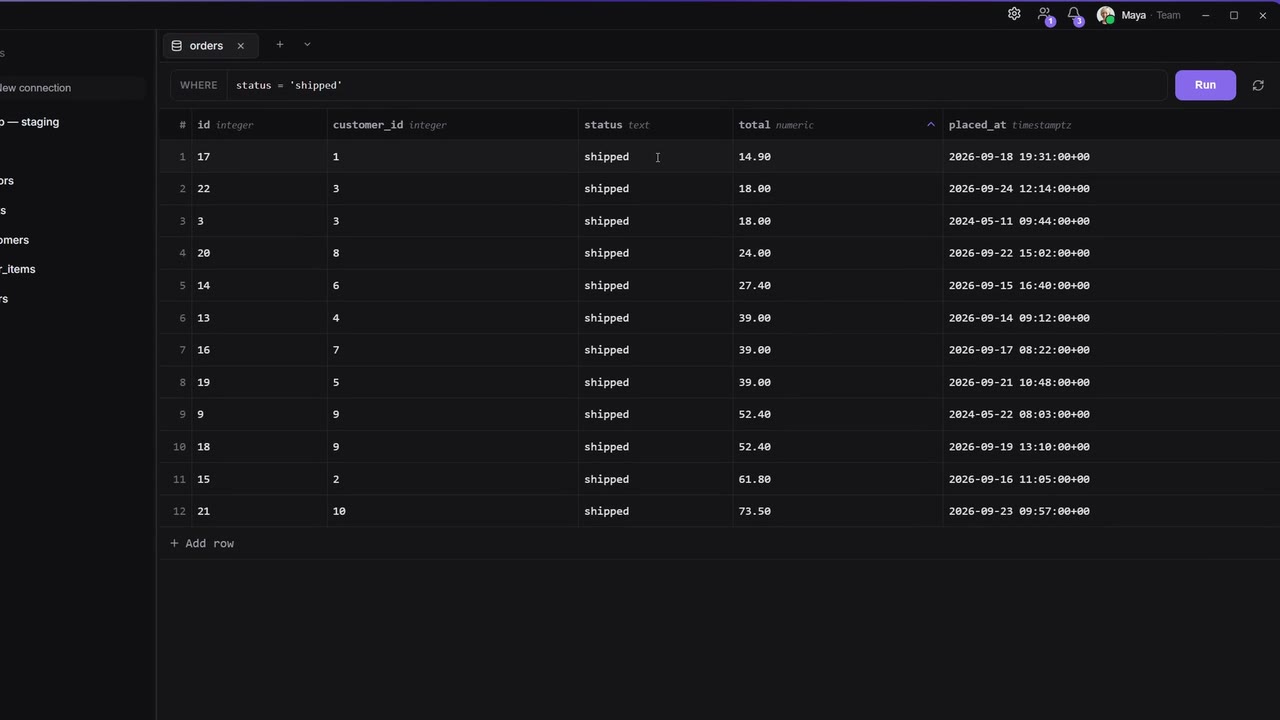
The DB Manager is a database client inside Apiboo. Connect to MySQL, PostgreSQL or SQLite, browse tables in a fast grid, edit rows with a review step before anything is written, and run SQL in query tabs with history and saved scripts.
Connect to a database
- Open DB Manager on the rail.
- Click New connection (the + next to Databases in the sidebar).
- Pick the Database type: MySQL, PostgreSQL or SQLite. The type you used last is preselected.
- Fill in the form (below) and click Connect.
The connection is saved and connected at once. There is no separate test step: if the server cannot be reached, the connection shows an error after up to 10 seconds, and you can click it to try again.
MySQL and PostgreSQL
| Field | What to enter |
|---|---|
| Name (optional) | A name for the sidebar, e.g. "Bookshop staging". Without one, user@host:port is shown. |
| Host | Default localhost. |
| Port | Default 3306 (MySQL) or 5432 (PostgreSQL). |
| Database | PostgreSQL: required, default postgres. MySQL: optional; without it you see every database. |
| User | Default root (MySQL) or postgres. |
| Password | When editing, leave it blank to keep the saved password. |
| Save this connection to the vault | Ticked by default. Untick it for a connection that lasts only this session. |
| Ask for the password each time | The password is not stored; Apiboo asks when you connect. |
| TLS | How the connection is encrypted (see below). |
TLS
| Option | What it does |
|---|---|
| Prefer — encrypt if the server offers it | The default. Encrypts when the server supports it, otherwise connects without. |
| Verify full — encrypt and check the server certificate and hostname | The safest choice for servers on the internet. |
| Verify CA — encrypt and check the certificate | Checks the certificate but not the hostname. |
| Require — encrypt, but do not verify who answers | Always encrypts, never checks the certificate. |
| Disable — no encryption | Plain connection. |
For the verify modes you can pick a CA certificate (the CA that signed the server certificate, not the server certificate itself). Client certificate and Client key are optional, for servers that ask for them.
SQLite
After choosing SQLite, pick Open existing or Create new:
- Open existing: choose the Database file (
.sqlite,.sqlite3,.db,.db3or any file), then Connect. - Create new: choose a Folder and a File name (default
database.sqlite), then Create & connect. The file is created when you connect.
Passwords and the Vault
Saved connections live in your Vault as DB connection items, with the password encrypted there. The desktop app opens the connection itself, so the password is never handed to the DB Manager's screen.
- If a saved connection has no password, Password required appears when you connect. Tick Save this password with the connection to keep it; it is stored only after the connection succeeds.
- If the Vault is locked, the sidebar shows Vault locked with Unlock vault. Connections that are already open keep working. Unlocking does not reconnect anything by itself.
- If the Vault is locked when you save a new connection, Apiboo asks for the Vault passphrase. If you dismiss it, the connection lasts only this session.
The sidebar
Each connection is its own entry in the sidebar. Nothing connects by itself: click or expand a connection to connect. A spinner shows while connecting; after a failure an alert icon says "click to retry".
| Engine | What you see under a connection |
|---|---|
| MySQL | Databases → each database → Tables and Views (system schemas hidden) |
| PostgreSQL | Tables and Views of the public schema |
| SQLite | Tables and Views |
Expand a table to see its Columns (primary keys have a key icon), Constraints, Foreign Keys, References, Triggers, Indexes and, on MySQL, Partitions. SQLite shows Columns, Foreign Keys, Triggers and Indexes. Views show their Columns.
Right-click (or the … button) for actions:
| On | Actions |
|---|---|
| A disconnected connection | Connect, Edit connection, Remove connection |
| A connected connection | Refresh, Edit connection, Disconnect, Remove connection |
| A table | Open in new tab, Design table, Show CREATE, Export…, Import SQL dump…, Drop / truncate table |
| A view | Show CREATE |
| Tables | New table |
| MySQL Databases | New database |
Remove connection asks first. For SQLite, the database file is not deleted.
Browse a table
Click a table to open it in a tab. Rows load in chunks as you scroll, and the grid only draws the rows on screen, so large tables stay smooth.
- Rows per fetch: the "/ load" picker in the footer (100, 200, 500, 1000, or any value up to 10,000).
- The grid holds up to 10,000 rows; the footer then shows "display limit". Use Export… for everything.
- The footer shows how many rows there are and how many are loaded.
Filter
Type a condition in the WHERE box, for example status = 'shipped' AND total > 50, and press Enter or click Run. Column names are suggested as you type. The filter runs on the database, not just on the loaded rows.
Sort and columns
- Click a column header to sort; Shift+click adds another sort level. Sorting runs on the database.
- Right-click a header for Order by … ASC / DESC, Remove sort on …, Hide …, Show all columns, Choose columns… and Reset column width.
- Choose columns lets you filter the column list, Show all, Hide all and Apply.
Find in results
Press Ctrl+F (Mac: ⌘+F) to search the loaded rows. Enter or F3 goes to the next match, Shift+Enter or Shift+F3 to the previous one, Aa matches case, and Esc closes the bar. Up to 2,000 matches are listed.
Edit data
Changes are staged first and written only when you save, so you can review them.
- Double-click a cell to edit it. Long values (200 characters and more) and JSON open in the cell dialog instead.
- While editing: Enter keeps the value, Esc cancels, and Alt+N sets the cell to NULL.
- Staged changes are highlighted, and the footer shows Save (N) and Cancel.
- Save (or Ctrl+S, Mac ⌘+S) writes all changes in one transaction. Cancel (or Esc) discards them.
If saving fails, a Save failed banner shows the database's error and nothing is half-written.
The cell dialog (Edit cell… in the right-click menu) shows the value as Text, JSON, XML or Binary, with Wrap, Format, Set NULL and Stage change. Binary values and values over 1 MB are read-only. Date and time columns get a calendar with Today/Now.
Rows
- + Add row adds an empty row at the end.
- Duplicate row (or Ctrl+D) copies the selected rows below the originals, leaving primary-key and unique columns empty.
- Delete marks the selected rows for deletion; press it again to keep them. The footer also has Delete N rows / Keep N rows. Deletions happen on Save.
- Select rows by clicking the row numbers, Ctrl+click to add, Shift+click for a range. Cells work the same way.
Copy and paste
- Ctrl+C copies the selected cells as tab-separated text, ready for a spreadsheet.
- Ctrl+V pastes a block, or fills every selected cell with one value. The pasted values are staged.
- The Copy menu in the footer copies as CSV, JSON, Markdown or an HTML table.
- Right-click a cell for Copy cell, Copy row as JSON, Copy row as SQL INSERT, and for several rows Copy N rows as CSV/JSON/SQL INSERT or Export N rows….
The right-click menu also filters by a cell: Filter: col = value, ≠, contains, IN (…), IS NULL and IS NOT NULL.
Record view
With rows or cells selected, press Tab to flip the grid: each selected record becomes a column, which makes wide tables easier to read. Tab flips back.
Foreign keys
- A cell that holds a foreign key has a small arrow, Go to table (constraint). It opens the referenced table filtered to that row.
- FK dictionary: in the cell dialog of a foreign-key column, References table.col lists the rows of the referenced table as "key — label", with a search box. Click one to stage its key. It shows up to 200 rows; search to narrow it. It works for foreign keys on a single column.
For example, editing orders.customer_id lets you pick "17 — Maya Marchetti" instead of typing 17.
Query tabs
- While in the DB Manager, click + in the tab strip. New query tab offers your Saved scripts and New query.
- Write SQL. Column and table names are suggested as you type.
- Press Ctrl+Enter (Mac: ⌘+Enter). It runs the selected text, otherwise the statement at the cursor. To run a whole script, select it all first.
After the first run, the editor sits above the results. The toolbar has:
- Format (Shift+Alt+F) to tidy the SQL;
- Stop to cancel a running query (on SQLite it stops waiting, but the query itself finishes);
- History (Ctrl+Shift+H).
Several statements give one button per result ("Result 2 (14 rows)", "3 affected"). A statement without rows says "Statement completed — no rows returned". After an error, Explain this error asks the AI assistant about it.
Results in a query tab are read-only. How many rows are fetched is set by the max picker next to the row count: 100, 1,000, 10,000 (default), 50,000 or 200,000. A cut-off result says "truncated".
Query history
Query history lists the statements you ran in query tabs, newest first, with their connection, time, row count and any error. Running the same statement again adds to its count instead of a new entry.
- Search statements and the connection filter narrow it.
- Click an entry to put it into the editor.
- Remove from history deletes one entry, Clear deletes all.
History is kept on this computer only (up to 300 entries) and is not synced.
Saved scripts
Press Ctrl+S in a query tab to save the SQL as a script. The first time, Save script asks for a Script name and whether to Link script to the current database. Scripts are stored as .sql files for your account and workspace on this computer. Open them from Saved scripts in New query tab, where Delete script removes one. Saving under an existing name asks before overwriting.
Change the structure
- Design table lets you add, change and remove columns. Review changes shows the SQL, and Execute runs it. A renamed column is dropped and added again, so its data is lost. Primary-key changes are refused. On SQLite you can only add columns.
- Show CREATE shows the table's
CREATEstatement with Copy. On PostgreSQL it is rebuilt from the schema information and may differ from the original. - New table and, on MySQL, New database create one with Create.
- Drop / truncate table offers Drop table (remove table and all data) or Truncate table (delete all rows, keep structure). You must type the table name to confirm.
Export and import
Export… (on a table, or the grid's right-click menu) opens Export result set:
- Current result or Entire table (the entire table respects your filter and sort and is read in chunks);
- CSV or SQL INSERT statements (100 rows per statement).
Import SQL dump… runs a .sql file against the database after a warning that it cannot be undone. Dumps that use PostgreSQL's COPY format are not supported.
The AI assistant
The AI assistant can list your connections, read a schema and run SQL. A query it wants to run appears as an approval card, "Run SQL on …", unless you turned on Auto-run. The assistant gets only the row count and column names of the result, never the row values.
Shortcuts
| Action | Windows and Linux | Mac |
|---|---|---|
| Find in results | Ctrl+F | ⌘+F |
| Next / previous match | F3 / Shift+F3 | F3 / ⇧+F3 |
| Run statement at the cursor | Ctrl+Enter | ⌘+Enter |
| Save staged changes / script | Ctrl+S | ⌘+S |
| Format SQL | Shift+Alt+F | ⇧+⌥+F |
| Query history | Ctrl+Shift+H | ⌘+⇧+H |
| Toggle record view | Tab | Tab |
| Duplicate selected rows | Ctrl+D | ⌘+D |
| Copy / paste selected cells | Ctrl+C / Ctrl+V | ⌘+C / ⌘+V |
| Set cell NULL while editing | Alt+N | ⌥+N |
| Mark rows for deletion | Delete | Delete |
| Close find / clear selection / discard changes | Esc | Esc |
These shortcuts are fixed. They are also listed under Settings → Keyboard → DB Manager.