
Chat search & export
Find any message with has:, from: and date filters, and export a chat.
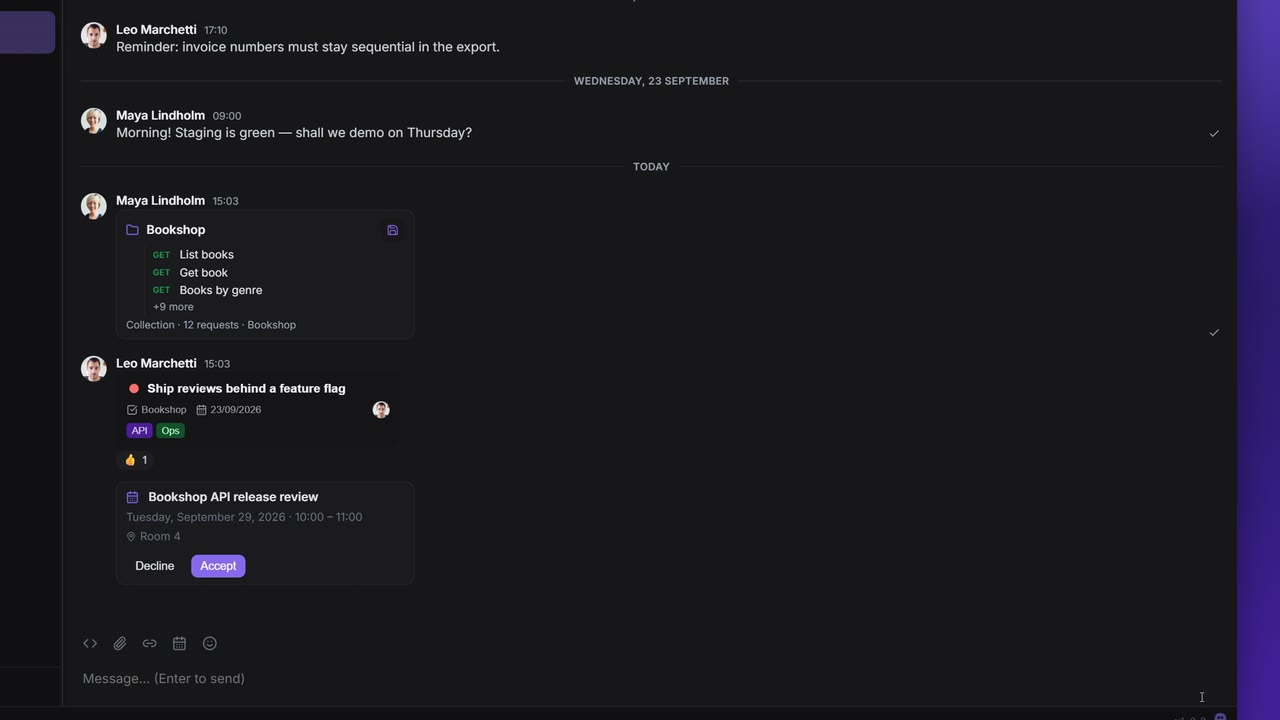
Every conversation has its own search in the header, with filters in the style of Discord: has: for what a message contains, from: for who sent it and before:, after: and during: for when. The More options (…) menu next to it exports the whole conversation to a file.
Search looks inside the conversation you have open. It does not search across conversations.
Search a conversation
- Click Search in the conversation header.
- Type words, filters or both, for example
has:task from:Maya invoice. - Press Enter. The results open in a panel beside the conversation.
How the words match:
- Every word must appear in the message, in any order. Case doesn't matter, and a word also matches inside a longer one.
- Put a phrase in quotes,
"release notes", to match it as one piece. - Search looks at the message text and at what a shared item is called: a file's name, a shared item's label or title, an appointment's location, a Vault secret's label. It never looks at a secret's contents.
- The search text can be up to 200 characters long.
Autocomplete
Click into the field and Search options lists the five filters. Type the start of one, or pick it, and the menu switches to its values:
| Filter | Menu | What it offers |
|---|---|---|
from: | From member | The people in this conversation, filtered as you type a name or email |
has: | Message contains | The 15 values below |
before:, after:, during: | Date | Today, Yesterday and Pick a date… |
Use ↑ and ↓ to move through the menu, Tab or Enter to pick. Esc closes the menu; pressed again, it clears the search and closes the results.
Filter by content: has:
| Filter | Menu label | Finds |
|---|---|---|
has:image | Image | Images sent in the chat |
has:video | Video or video link | Video files, and links to YouTube or Vimeo videos |
has:file | File | Files attached to a message |
has:link | Link (http, www) | Messages with a link that starts with http://, https:// or www. |
has:code | Code snippet | Code blocks |
has:task | Task | Shared tasks |
has:appointment | Appointment | Shared appointments |
has:workspace | Shared workspace | Shared workspaces |
has:collection | Collection | Shared collections |
has:request | Request | Shared requests |
has:document | Document (older shares) | Documents shared in the older format |
has:board | Board (older shares) | Boards shared in the older format |
has:secret | Vault secret | Shared Vault secrets |
has:reply | Reply | Replies to another message |
has:forward | Forwarded message | Forwarded messages |
Several has: filters must all match: has:image has:reply finds replies that contain an image.
A has: value that is not in the list is searched for as plain text, so has:sticker looks for the words "has:sticker".
Filter by person and date
from: takes a member's name, or the part of their email before the @. Quote a name with a space: from:"Leo Marchetti". Picking a person from the menu writes the quotes for you. Several from: filters find messages from any of those people. A name that nobody in the conversation has stops the search with "Nobody named … in this conversation."
Dates are calendar days in your own time zone, written YYYY-MM-DD, or today and yesterday:
| Filter | Finds messages |
|---|---|
before:2026-09-01 | Sent before 1 September 2026 (the day itself is not included) |
after:2026-09-01 | Sent after 1 September 2026 (from 2 September on) |
during:2026-09-01 | Sent on 1 September 2026 |
Combine them for a range: after:2026-08-31 before:2026-09-08 is the first week of September. A date that doesn't exist, such as 2026-02-30, stops the search with "is not a date (use YYYY-MM-DD)".
The results
The panel shows:
- the number of results, for example "12 results", or "25+ results" when there are more than it counted;
- Newest and Oldest to change the order;
- the results grouped by day, with your words highlighted. Shared items show as small chips; a Vault secret shows its label only. Forwards carry a Forwarded tag.
At the end of the list, Search older messages continues further back while there is more to search. No more results means the search has reached the start of the conversation. The × in the panel's header closes it.
Jump to a message
Click a result, or press Enter or Space on it, and the conversation scrolls to that message and highlights it for a moment.
If the message is far back, Apiboo loads older history page by page. The card shows "Loading older messages…" while it works. When the message is very far back, it stops and asks: "This message is far back. Keep loading?" Click Keep loading to go on.
While you read old messages, a Jump to present button brings you back to the newest ones. If the message was removed in the meantime, the card says "That message is no longer available."
Your plan's history window
On the Free plan, search covers the last 90 days, the same history you can scroll to. The panel says so: "Results cover the last 90 days your plan shows." with an Upgrade link. Older messages are not deleted, and search finds them again as soon as you are on a paid plan. See Chat on each plan.
Export chat history
Exporting is part of the paid plans (Pro, Team and Enterprise).
- In the conversation header, click More options (…) → Export chat history.
Pick a Format:
Format Description in the dialog File Markdown Readable text with formatting .mdJSON Structured data for scripts and archives .jsonPlain text Plain text, one line per message .txtHTML A single web page you can open anywhere .html- Click Export. The dialog counts the messages as it goes ("Exported 1200 messages…"), then asks where to save the file. The suggested name is the conversation's name plus the date, for example
bookshop-api-chat-2026-09-24.md.
What goes into the file:
- every message from the start of the conversation, oldest first; deleted messages are left out;
- attachments by name only. The files themselves are not included;
- a shared Vault secret by its label only, never its contents;
- at most 100,000 messages. A longer conversation stops there, and Apiboo tells you.
Closing the dialog while it runs cancels the export, and nothing is saved. If the server asks Apiboo to slow down, the export pauses and retries by itself.
On the Free plan
On Free, the menu shows Export chat history with a Pro badge and a lock. Clicking it opens the upgrade dialog with "Exporting chat history is part of the paid plans." instead of the export.