
Variables & environments
Write a value once as {{name}} and use it in URLs, headers, bodies and scripts.
Syntax
Wrap a name in double curly braces, {{name}}, and use it wherever you write a request: in the URL, in headers, in the body and in scripts.
Nesting variables
A variable's value can use other variables. For example, {{baseUrl}} can hold
http://localhost:4180/{{apiVersion}}and {{apiVersion}} is a variable of its own inside it.
The variable popout
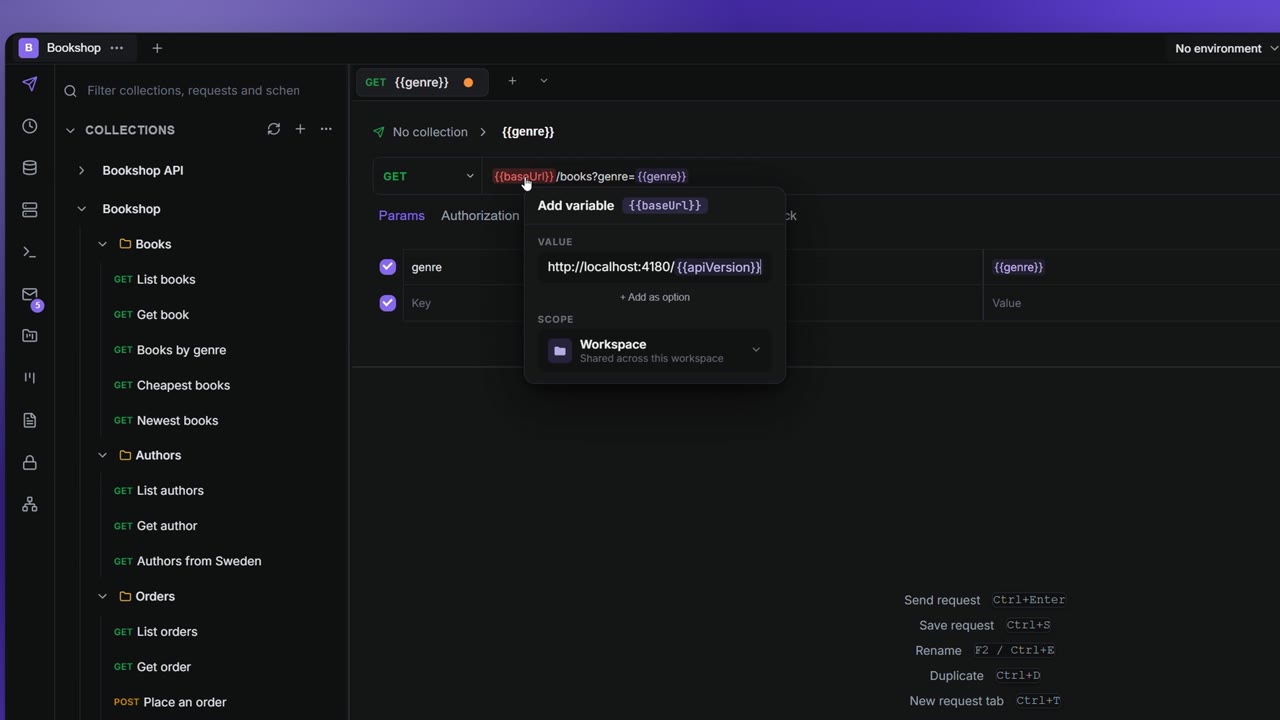
A variable that is not defined yet is shown in red. Click it, and the Add variable popout opens right where you typed it:
- Type the variable in a field, for example
{{baseUrl}}in the URL. It shows in red because it is not defined yet. - Click it. The Add variable popout opens.
- Enter the Value. It can use other variables, like
{{apiVersion}}. - Pick the Scope it lives in (see Scopes).
Once the variable is defined, it turns purple.
Scopes
The Scope picker in the popout decides where a new variable lives:
| Scope | What the picker says |
|---|---|
| Workspace | Shared across this workspace |
| Global | Available everywhere |
Folder variables
A folder can hold its own variables. They apply to every request in the folder and its subfolders, and override collection and environment variables of the same name.
- Right-click a folder in the sidebar and choose Folder variables….
- Add, change or switch off rows in the table, and click Save.
When a name is defined in several places, the first match wins, in this order:
- values a script set for this send, then values a script set for the session (see Work with variables);
- folder variables, the nearest folder first;
- collection variables;
- environment variables;
- workspace variables;
- global variables.
A folder variable marked secret is treated like any other secret: the AI assistant and MCP never see its value, and a Postman or Bruno export leaves the value out. Scripts read folder variables but can't change them; a script's set goes to the session value instead. In a team workspace where you are a viewer, the table opens read-only.