
Terminal
Local shells and SSH connections from the Vault, in tabs next to your work.
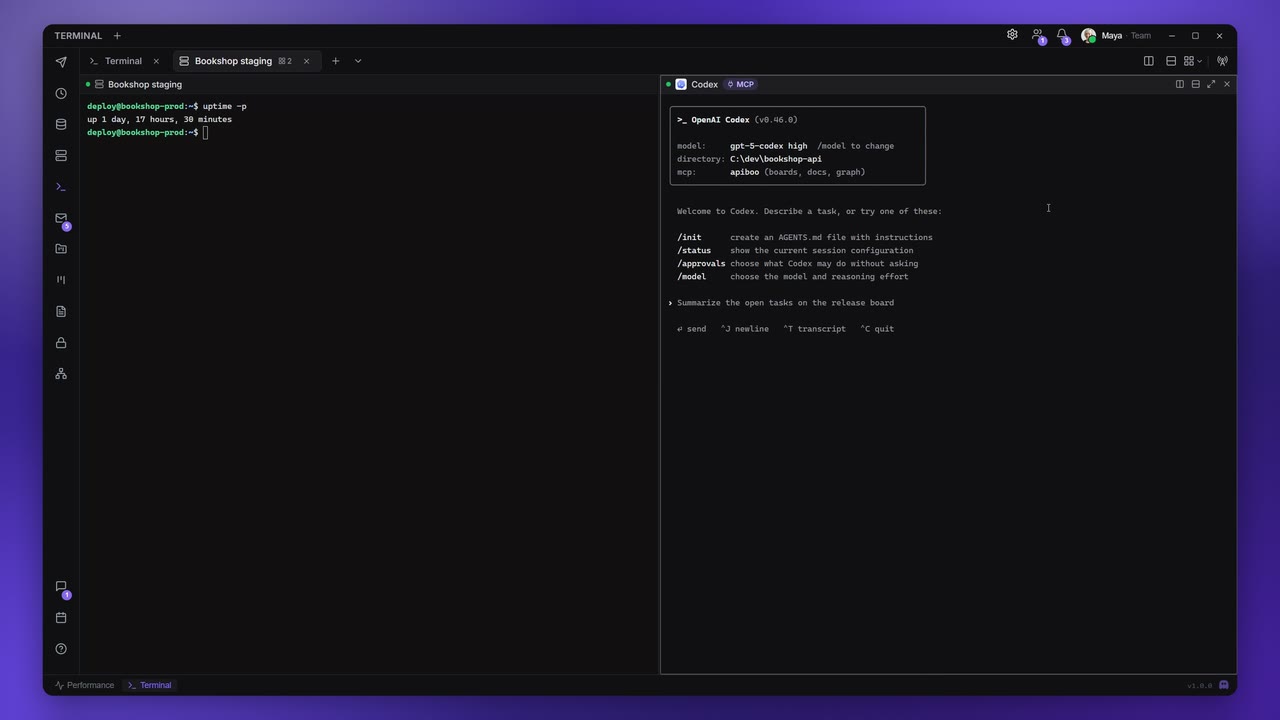
The Terminal runs real shells inside Apiboo: your local shells, SSH sessions to the servers saved in your Vault, and coding agents such as Claude Code or Codex. Every tab can be split into several panes. This page covers tabs, shells, SSH and the settings. Splits and layouts are on Split panes & layouts, agents are on Agents in the terminal.
The start screen
When no tab is open, the Terminal shows Start a terminal, a card with one-click starts:
| Button | What it opens |
|---|---|
| Default shell | A local terminal in a new tab. |
| The first installed agent, e.g. Claude Code | That agent in a new tab ("Coding agent, new tab"). It appears only when an agent from your profiles is installed and not hidden. |
| SSH connection | The picker of SSH connections from your Vault (see SSH from the Vault). |
| Your Saved layouts | Up to three saved layouts, each opening in a new tab. Shown once you have saved one. |
Below the buttons, Shortcuts lists the pane shortcuts for your platform: split right, split down, move between panes, resize panes, zoom pane and close pane. The full list is on Shortcuts.
Open a terminal
There are three ways to open a new tab:
- the start screen described above;
- the + button right of the tabs ("New terminal"), which opens a menu of agents, shells and SSH connection…;
- the + in the Terminal's title bar ("New local terminal"), which opens the default shell at once.
The + menu has a search box at the top ("Open an agent or a shell…"). Type to filter, use ↑ and ↓ to move, Enter to open and Esc to close it. The list has three parts:
- Agents: Claude Code, Codex, Cursor CLI, Grok and your own profiles, each with its install state. See Agents in the terminal.
- Shells: the local shells found on this computer.
- SSH connection…: opens the SSH picker.
At the bottom, Manage profiles… opens the Terminal settings and Re-check looks for installed agents again.
A shell from the + menu always opens in a new tab. To open one next to a pane instead, use "Split with…" (see Split with…).
Local shells
Apiboo lists the shells it finds on your computer:
| Platform | Shells offered |
|---|---|
| Windows | Command Prompt (always), PowerShell 5, PowerShell Core (when pwsh.exe is on your PATH), Git Bash (when installed in C:\Program Files\Git), WSL (when wsl.exe is available) |
| macOS and Linux | your login shell from $SHELL, plus bash, zsh, fish and sh where they are installed |
Default shell is Command Prompt on Windows and your $SHELL on macOS and Linux.
On Windows, Apiboo gives Command Prompt, PowerShell and Git Bash a clean prompt: the current folder in grey, the Git branch as git:(branch) (not in Command Prompt), and the cursor on its own line. A thin line separates one command's output from the next. This prompt also tells Apiboo which folder you are in, which is how splits and saved layouts know where a pane is now (see The working directory).
SSH from the Vault
The Terminal opens SSH sessions to the servers you saved in the Vault.
- Choose SSH connection on the start screen, or SSH connection… in the + menu.
- The Open SSH connection dialog lists "Saved connections from your vault". Type in Filter connections to narrow it by name, team, user or host.
- Click a connection. It opens in a new tab.
Each row shows the connection's name and user@host:port. A connection from a team vault also shows the team's name, so you can see whether a credential is yours alone or your team's.
If the Vault is locked, the dialog shows Vault is locked with an Unlock button. If you have no SSH connections yet, it says "No SSH connections in the vault yet." Add an SFTP connection first (see Vault and FTP / SFTP & file editor).
Tabs
Tabs work like the other tab strips in Apiboo:
- Click a tab to switch to it. Tabs you are not looking at keep running.
- Double-click a tab's name to rename it, or right-click it and choose Rename.
- The × on a tab closes it and ends every program in it.
- The chevron next to + opens All tabs with a search ("Search terminals"). A tab whose panes have all ended is marked "exited".
A tab shows the icon of its first pane: an agent's icon, the SSH icon or the terminal icon. A split tab also shows a badge with its number of panes, and a broadcasting tab a broadcast mark.
Right-click a tab for its menu:
| Item | What it does |
|---|---|
| Split right… / Split down… | Opens "Split with…" for the tab's focused pane. |
| Rename | Renames the tab. |
| Save layout… | Saves the tab's panes as a layout (see Saved layouts). |
| Broadcast input to all panes / Stop broadcasting input | Only with more than one pane. |
| Close other panes | Keeps only the focused pane. Only with more than one pane. |
| Close tab | Closes the tab and all its panes. |
Pane status and the exit bar
A pane with a header shows a coloured status dot: Starting, Running, Exited or Failed to start. An agent that takes longer than a moment to start shows "Starting Claude Code…" in the pane.
What happens when a program ends depends on When a program exits in the settings:
| Setting | What happens |
|---|---|
| On a clean exit (code 0) (the default) | The pane closes when its program ends with code 0, for example when you type exit. Any other code keeps it open. |
| Always | The pane closes whenever its program ends. |
| Never — keep it open to restart | The pane always stays open. |
Closing the last pane of a tab closes the tab.
A pane that stays open keeps its output and shows the exit bar at the bottom, for example "Codex exited (code 1)":
- Restart runs the same program again in the same pane. With the pane focused, Enter does the same.
- Open shell here replaces the program with the default shell in the same folder. It is offered for agents, SSH panes and shells other than the default one.
- Close pane closes it. With the pane focused, Esc does the same.
If an agent is not installed, the pane shows the install hint instead of a dead terminal (see Install detection and the install hint).
The working directory
Where a new terminal starts is decided in this order:
- Splits follow their pane. A split opens in the folder of the pane it was split from. Where the shell reports its folder (the Windows shells above), this is where the pane is now, after any
cd; otherwise it is the folder the pane started in. - New tabs start in the default folder, if you set one.
- Otherwise a new tab starts in your home folder.
A profile with its own folder overrides both rules. See Where a profile starts.
To set the default folder:
- Open Settings → Extensions → Terminal, or choose Manage profiles… in the + menu.
- Under Working directory, fill in Default folder or click Browse… to pick it. Clear removes it.
The folder must be a local absolute path, like C:\dev\bookshop on Windows or /home/maya/bookshop elsewhere. A network path or a relative path shows a warning, and terminals then start in your home folder. A folder that no longer exists also falls back to your home folder. The default folder is stored for your account on this device only.
Terminal settings
Settings → Extensions → Terminal has:
| Setting | What it does |
|---|---|
| Font size | Terminal text size in pixels, 8 to 24 (default 11). Applies to open local and SSH tabs at once. |
| When a program exits | Whether a pane closes itself when its program ends (see Pane status and the exit bar). |
| Working directory → Default folder | Where new tabs start (see The working directory). |
| Profiles | The agents and programs of the + menu (see Profiles). |
The pane shortcuts are also listed under Settings → Keyboard → Terminal.
The AI tab
When an AI agent runs an approved command on one of your servers over MCP, and you chose to watch it, the command runs in a tab marked AI. This tab only accepts the commands you approved and Ctrl+C. It cannot be split, broadcast to or saved as a layout, so the shell it shows cannot change under the next approval card. See Deploying with an agent.