
Welcome to Apiboo
Install Apiboo, finish the first launch and find your way around the app.
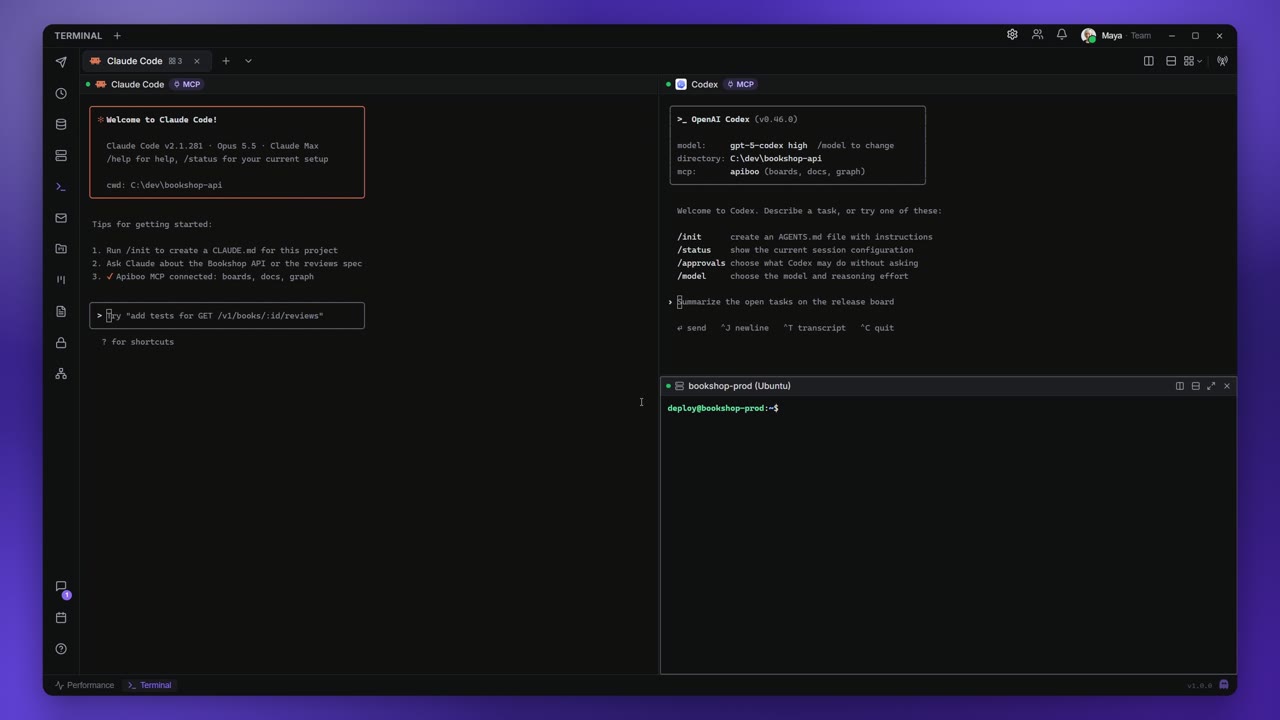
Apiboo puts an API client, a database manager, terminals, file transfer, a mail catcher, boards, documents, a calendar, chat and a vault into one desktop app. Your work stays on your own computer unless you decide to sync it. This page takes you from the download to your first request.
Install Apiboo
Apiboo is a desktop app for Windows, macOS and Linux.
- Open apiboo.com/download and pick your operating system.
Run what you downloaded:
- Windows: the installer sets Apiboo up for your user account and opens it when it's done.
- macOS: open the DMG (there are builds for Apple silicon and Intel) and drag Apiboo into Applications.
- Linux: use the AppImage, or install the
.debpackage.
- Start Apiboo.
You don't need an account. Collections, requests, environments, documents, databases and the Vault all work signed out and are stored on your machine. An account is only needed for things that go through Apiboo's servers: syncing between devices, sharing and teams (see Sign in).
The first launch
The first time you open Apiboo, a short welcome tour appears. It takes about a minute, and Skip tour is always there if you'd rather look around on your own.
| Step | What you do |
|---|---|
| Welcome to Apiboo | Read what Apiboo is and accept the Terms of Service and the Privacy Policy with Agree and continue. |
| What do you mostly do? | Pick a role. It decides which tools show on the rail (see Pick your role). |
| Your tools | Fine-tune the tools: switch any of them on or off. |
| Tool clips | A short clip for each tool you kept that has one. |
| You're all set | Shows where Help lives. Start using Apiboo closes the tour. |
Back and Next move between the steps, and the dots show where you are. The tour opens once per device, and again when the terms change. Replay onboarding in Help runs it again from the role step.
Pick your role
A role is a starting point, not a limit. It only decides which tools appear on the rail; nothing is uninstalled and nothing is locked.
| Role | Tools on the rail |
|---|---|
| Developer | Every tool. |
| Project manager | Projects, Boards, Documents, Vault, Graph, Chat and Calendar. No API tooling. |
| QA / Tester | API Client, History, DB Manager, Mail catcher, Projects, Boards, Documents, Vault, Chat and Calendar. |
| DevOps / Sysadmin | API Client, History, DB Manager, Terminal, FTP / SFTP, Projects, Boards, Documents, Vault, Chat and Calendar. |
| Custom | Starts with everything on, and you pick on the next step. |
Your tools
On the Your tools step, recommended tools are switched on and the rest are listed under Other tools. A tool you switch off is hidden from the rail, not removed:
- it stays installed and keeps its data;
- its keyboard shortcuts and links still open it;
- one switch brings it back.
At least one tool always stays on the rail, so the last switch that is on can't be turned off.
You can change all of this later in Settings → Appearance → Your tools (see Show and hide tools). Picking a Role preset there resets the list to that role's recommended tools.
Find your way around
The window has four areas:
- The rail, the column of icons on the left. Each icon opens a tool: API Client, History, DB Manager, Terminal and so on. Chat, Calendar and Help sit at the bottom. See The rail.
- The sidebar next to it, which shows what belongs to the open tool, for example your collections and folders.
- The tabs in the middle, where requests, documents, boards and queries open.
- The title bar along the top. On the API tools it holds the workspace switcher, the environment picker and the mock server. On the right are Settings, the sync status, Teams, notifications and your account.
Search everything
Press Ctrl+K (⌘+K on macOS) to open the command palette. It searches workspaces, collections, requests, open tabs, documents, boards, chat channels and people, and it runs commands such as creating or importing a collection, opening Settings or closing all tabs. Use ↑ and ↓ to pick a result and Enter to open it.
Help & docs
The Help & docs button (the question mark at the bottom of the rail) opens this documentation inside the app. It works offline, because the pages ship with the app; only the videos need a connection.
- Search at the top finds guides, features and shortcuts. Ctrl+K focuses it while Help is open.
- The left column lists every section. Tools you hid from the rail are shown dimmed, marked Hidden from your rail.
- The footer has Replay onboarding, Shortcuts, Report an issue and Open on apiboo.com/docs.
Your first request
- Click API Client on the rail.
- Open a new tab with Ctrl+T (⌘+T).
- Enter
http://localhost:4180/v1/booksand press Ctrl+Enter to send it.
Everything else about requests is in Requests.