
Mail catcher
A local SMTP inbox that catches the emails your app sends while you test it.
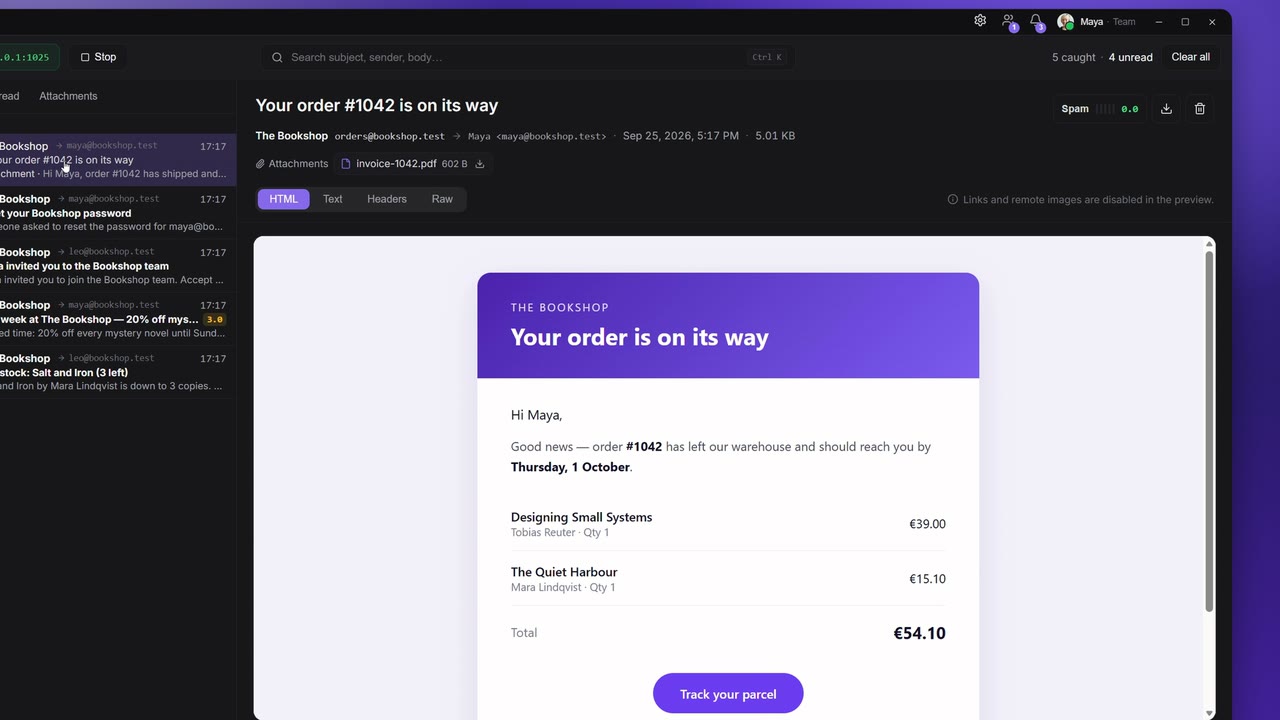
The mail catcher is a small mail server on your own computer. Point your app's SMTP settings at it, and every email the app sends (order confirmations, password resets, invitations) lands in an inbox inside Apiboo instead of a real mailbox. Nothing is delivered to anyone. It works like Mailpit or MailHog.
Start the server
- Click Mail catcher on the rail.
- Click Start in the toolbar. The status changes from Not running to
127.0.0.1:1025with a green dot. - Click Stop to stop it.
The server listens only on 127.0.0.1, so other computers on your network cannot send to it. If the port is taken, the toolbar says so, for example "Port 1025 is already in use — another mail catcher (Mailpit, MailHog) may be running." Stop the other program or choose another port (see Settings).
To have it start with Apiboo, turn on Start with Apiboo in the settings.
Point your app at it
Use these SMTP settings in your app:
| Setting | Value |
|---|---|
| Host | 127.0.0.1 |
| Port | 1025 (or the port you chose) |
| Encryption | none (no TLS) |
| Username and password | anything; every login is accepted |
The empty inbox shows the same under Point your app at this server.
For example, with Python:
import smtplib
from email.message import EmailMessage

msg = EmailMessage()
msg["From"] = "Bookshop <orders@bookshop.example>"
msg["To"] = "maya@example.test"
msg["Subject"] = "Your order has shipped"
msg.set_content("Hi Maya, your books are on their way.")

with smtplib.SMTP("127.0.0.1", 1025) as s:
    s.send_message(msg)
A message can be up to 25 MB.
The inbox
The toolbar shows the server status, the Start/Stop button, the search box, the counts ("12 caught · 2 unread") and Clear all.
The list on the left groups messages by day (Today, Yesterday, then the date). Each row shows the sender's initials and name, the recipient (or "3 recipients"), the time, the subject, a paperclip and "1 attachment" when there are attachments, and the start of the text. Unread messages are marked; a message counts as read once you open it. New mail appears at once, without refreshing.
Above the list, three chips filter it: All, Unread and Attachments.
Keyboard, with the list focused:
- ↑ / ↓ open the previous or next message;
- Delete or Backspace asks to delete the open message.
Search
Type in Search subject, sender, body…. The search looks at the subject, the sender, the recipients and the first 200 characters of the text. It ignores upper and lower case. The × in the box clears it.
Read a message
Click a message to open it on the right. The header shows the subject, the sender and recipients (including Cc), the date and the size. Attachments are listed with their name and size, each with a Download button.
Four tabs show the message:
| Tab | What it shows |
|---|---|
| HTML | The HTML version, on a white card. Opens first when the message has one. "Links and remote images are disabled in the preview." |
| Text | The plain-text version. |
| Headers | Every header as a Key/Value table, the same look as response headers. |
| Raw | The complete message source. |
If a part is missing, the tab says so ("This message has no HTML part.").
In the top right:
- Download .eml saves the whole message as a
.emlfile. - Delete asks, then deletes the message.
Downloads use your system's save dialog, and Apiboo shows where the file was saved.
The spam check
Every message gets a spam score when it arrives. The check runs offline, without any external service, against 26 rules. They cover missing or malformed headers, a From domain that differs from the sender, bulk mail without List-Unsubscribe, subjects in capitals, HTML without a plain-text part, tracking pixels, URL shorteners, links whose text shows a different domain, executable attachments, and more.
- In the list, a message with a score of 5.0 or more gets a red SPAM badge with its score. A score from 2.0 to 4.9 shows the number in amber.
- In an open message, the Spam pill shows a five-bar meter and the score.
- Click the pill to open Spam check: one card per rule that matched, with its points, what was found, the evidence and What to improve. At the bottom are the total and the verdict, Rated as spam or Not spam.
A clean message says "No findings — this message looks clean." Real spam filters weigh these signals differently, so treat the score as a guide to fixing your templates.
Delete messages
- One message: Delete in the reading pane, or Delete in the list. Apiboo asks "Delete this message?".
- All messages: Clear all in the toolbar, or the bin in the title bar ("Clear all messages"). Apiboo asks, for example "Delete all 12 messages? This cannot be undone."
Apiboo also deletes old messages by itself once there are more than Keep the last (see below).
Settings
Settings → Extensions → Mail → SMTP server:
| Setting | What it does |
|---|---|
| Port | The local SMTP port, 1 to 65535 (default 1025). Restart the server to apply it. |
| Start with Apiboo | Listen for mail as soon as the app opens. Off by default. |
| Keep the last | How many messages to keep, 50 to 5000 (default 500). Older ones are deleted automatically. |
Where the mail is stored
Caught messages are stored on this computer only, in your account's local data. They are never synced, and they are removed when you sign out.