
Documents
Notes, specs and wikis: the editor, embeds, folders and links.
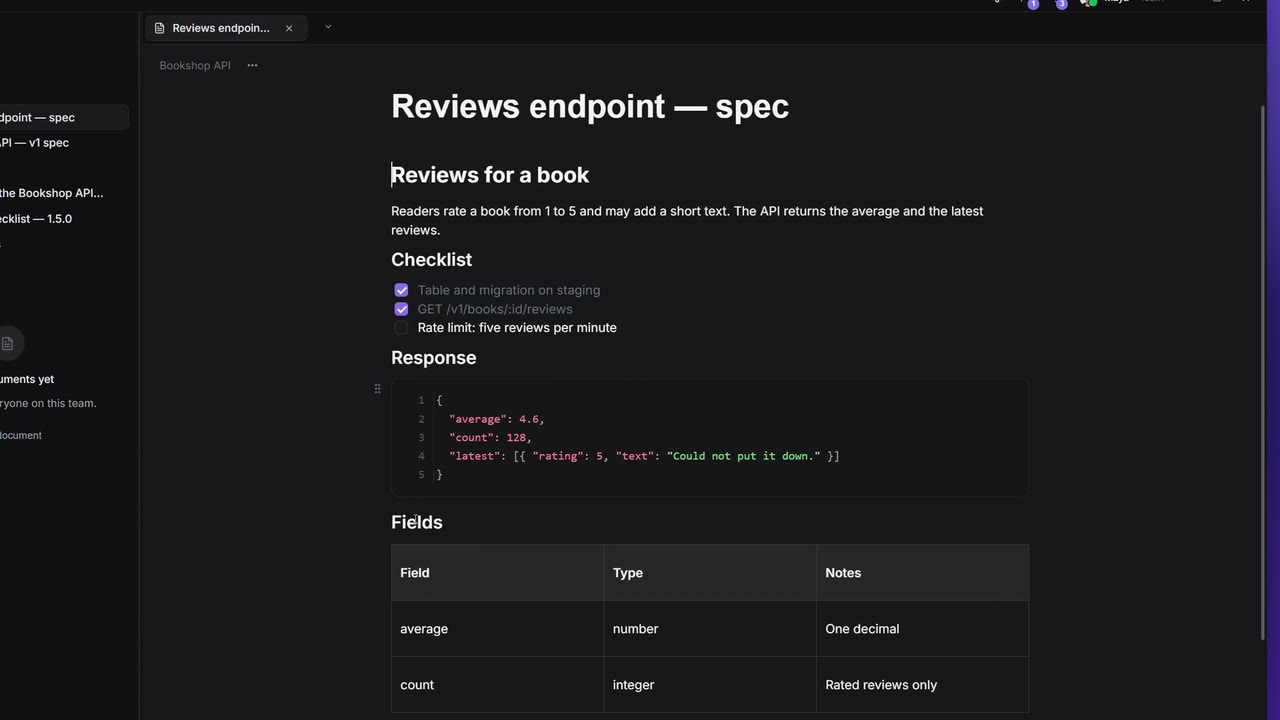
Documents is where your notes, specs and team wiki live, right next to the API they describe. Pages sit in a folder tree, can have subpages, and are written in a block editor with a / menu.
The document tree
Open Documents on the rail. The sidebar has these sections:
| Section | What's in it |
|---|---|
| Personal | Your own documents, synced to your account |
| On this device | Documents kept only on this computer |
| One section per team | Shared with everyone on that team, edited live |
Filter documents at the top narrows the tree.
- Click a document to open it in a tab. Click a folder to select it; its chevron opens and closes it.
- Drag items to reorder them or put them into a folder. Drop one onto a document to make it a subpage of that document.
- Rename the selected item with F2 or Ctrl/Cmd+E.
Create documents and folders
- Click + (New document or folder) on a section's header and pick New document or New folder. On a folder, the hover buttons New document and New folder create it inside that folder.
- Give it a title. A page with no title shows as "Untitled".
Right-click an item for more:
| Right-click on | Menu |
|---|---|
| A folder | New document, New folder, Export folder as PDF, Rename, Delete |
| A document | New subpage, Move to cloud / Move to this device (top-level pages), Print, Export as PDF, Export as Markdown, Export as HTML, Rename, Delete |
Write in the editor
The page has a title field and a body: "Start writing, or press '/' for commands…". Every block has a drag handle, so you can move paragraphs, lists and images around.
Select text for the formatting toolbar: Bold, Italic, Underline, Strikethrough and Code block.
You can also type Markdown as you go: #, ## and ### for headings, > for a quote, - or 1. for a list, - [ ] for a to-do, three backticks for a code block, and **bold**, *italic*, ~~strike~~ and `code` inline.
Slash commands
Type / at the start of a block:
| Group | Command | What it inserts |
|---|---|---|
| Basic | Text | A plain paragraph |
| Basic | Heading 1, Heading 2, Heading 3 | A large, medium or small heading |
| Basic | Quote | A quote |
| Basic | Code | A code block with highlighting |
| Basic | Table | A 3×3 table |
| Lists | Bulleted list, Numbered list | A list |
| Lists | To-do list | A list with checkboxes |
| Media | Image | An image from your computer |
| Media | Image from URL | Fetches a web image and stores it in the page |
| Media | YouTube | Embeds a YouTube or Vimeo video |
| Document | Subpage | A new page inside this one, with a link to it |
Code blocks
Pick the block's language for highlighting: Plain text, JSON, JavaScript, TypeScript, JSX, TSX, HTML / XML, CSS, Bash / Shell, Python, SQL, YAML, Markdown, Java, Go or Rust.
Tables
Hover a row or a column for its menu (Row options, Column options): insert above, below, left or right, clear its contents, or Toggle header row. Add row and Add column grow the table.
Images and videos
- Paste or drop an image into the page, or use Image / Image from URL. Drag an image's corner to resize it.
- YouTube asks for a link ("Paste a YouTube or Vimeo link…"). Pasting such a link on its own also embeds the video. Other video sites can't be embedded.
Link pages
Subpage (or New subpage in the tree) creates a page inside the current one and puts a link to it in the text. Click the link to open the page. If the page is deleted later, the link shows "Deleted page".
Page links also show up in the Projects & Graph as Links to / Linked from.
Export and print
From a document's ⋯ menu (or its right-click menu), choose Print or Export → PDF, Markdown or HTML. For a whole folder, right-click it → Export folder as PDF and choose whether to add a Contents page and Page numbers.
Team documents
Team documents are edited live by everyone on the team. If a teammate changes the same paragraph you are typing in, Apiboo tells you ("Someone else just edited this paragraph too — keep an eye on your text here.") with Dismiss.
Documents and AI agents
Documents are the main source of context for an AI agent connected over the MCP Server: with the Documents permission it reads your tree and your pages, newest first, and with the write grant it can create and change them. Agent Notes, the folder where agents keep notes between sessions, is an ordinary folder in your tree that you can read, edit and delete. See Memory across sessions.