
Collections & runner
Organise requests in collections and folders, and run a whole collection at once.
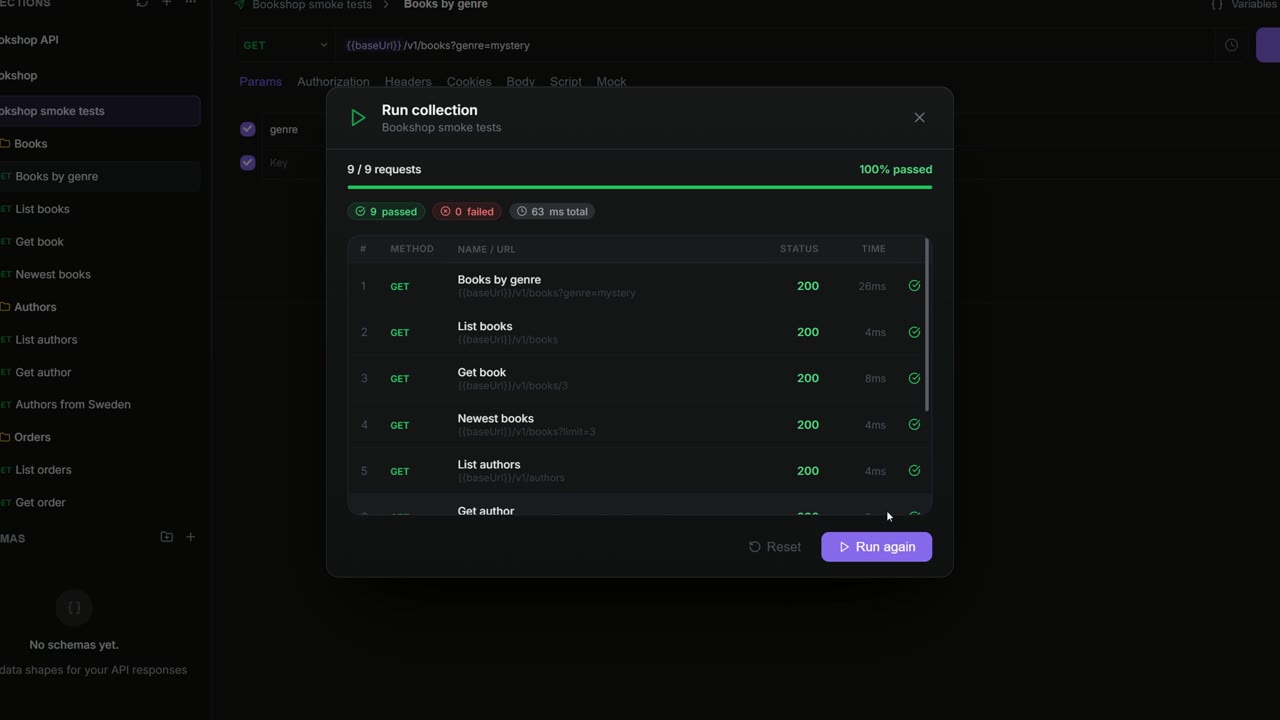
A collection holds related requests, for example everything for the Bookshop API, sorted into folders such as Books, Authors and Orders. A collection also carries shared settings: its documentation, the auth its requests inherit and its own variables. With the runner you send every request in a collection in one go and see which ones pass.
The API Client sidebar
Click API Client (the paper-plane icon) on the rail. The sidebar lists the collections of the workspace you're in (see Workspaces, sync & teams).
At the top of the sidebar:
| Control | Does |
|---|---|
| Refresh (Refresh collections) | Reloads the list. |
| + (New Collection) | Creates a collection. |
| … (More…) | New Collection, Import collection and Export collection… (see Import & export). |
| Filter collections, requests and schemas... | Filters the tree as you type. |
Click the arrow next to a collection or folder to open or close it. Click a request to open it in a tab. Click a collection's name to open its settings (see Collection settings).
Create collections and folders
A collection: click + at the top of the sidebar, enter a name in Create Collection and click Create.
A folder: right-click a collection and choose New Folder, or right-click a folder and choose New Subfolder. The folder is created as "New Folder"; rename it with F2.
A request in a collection: hover the collection and click + (Add Request), or right-click a collection or folder and choose Add. The Add submenu offers Request, GraphQL, WebSocket, Server-Sent Events and gRPC. A request you build in a new tab lands in a collection when you save it (see Save a request).
The right-click menu
Right-click an item in the sidebar, or hover it and click …:
| Item | On | Does |
|---|---|---|
| Add | Collection, folder | Adds a request of the kind you pick. |
| New Folder | Collection | Adds a folder. |
| New Subfolder | Folder | Adds a folder inside the folder. |
| Rename | All | Renames it in place. |
| Duplicate | All | Makes a copy named "name Copy". |
| Generate Code | Request | Turns the request into code (see Generate code). |
| Run Collection | Collection | Opens the runner (see Run a collection). |
| Export collection… | Collection | Exports it (see Export a collection). |
| Reveal in File Explorer | Collection in a local workspace | Shows its files on disk. |
| Share | Collection, request | Share Link… and In Chat… (see Share a collection). |
| Delete / Delete Folder | All | Deletes it after you confirm. |
Rename, Duplicate and Delete are greyed out where you only have read access, for example in a team workspace where you can't edit.
Rename, duplicate and delete
| Action | Mouse | Keyboard (on a selected row) |
|---|---|---|
| Rename | Rename in the menu | F2 or Ctrl+E |
| Duplicate | Duplicate in the menu | Ctrl+D |
| Delete | Delete in the menu | Delete or Backspace |
On macOS use ⌘ instead of Ctrl.
Deleting always asks first. Deleting a collection or folder deletes every request in it, and there is no undo.
Select several items
Ctrl+click (⌘+click) adds single items to the selection; Shift+click selects a range. Right-click the selection for:
- Move to…: pick a collection or folder and click Move here.
- Duplicate Selected
- Delete Selected, after you confirm.
Collections themselves can't be moved into another collection.
Reorder and move with drag and drop
Drag items in the sidebar to reorder them:
- Drag a collection up or down to reorder your collections.
- Drag a request or folder above or below another item to put it there.
- Drop it onto the middle of a folder to move it into that folder.
- Moving between collections works the same way.
- Drag one of several selected items to move the whole selection.
Collection settings
Click a collection's name to open it in a tab. It has three sections:
| Section | Holds |
|---|---|
| Docs | Documentation for the collection, in a rich-text editor. Press / for commands. |
| Authorization | The auth its requests use when they're set to Inherit from parent: No Auth, Bearer Token, API Key, Basic Auth, OAuth 2.0 or AWS Signature v4. See Authorization. |
| Variables | Variables that belong to this collection. See Variables & environments. |
Changes to Variables save themselves a moment after you stop typing. For Docs and Authorization, click Save or press Ctrl+S.
New requests start with Inherit from parent, so setting the auth once on the collection covers all of them.
Run a collection
The runner sends every request in a collection, one after another, and shows which passed.
- Right-click the collection and choose Run Collection.
- Pick the environment first, in the title bar: the runner uses the active one.
- Click Run All. Stop ends the run early.
The requests run in the order they appear in the sidebar. For each one you see its number, method, name and URL, the status (ERR if no response came back), the time and a tick or a cross. At the top are the totals: how many requests ran, the share that passed, the passed and failed counts and the total time.
A request passes when all its tests pass. A request without tests passes when its status is below 400.
When the run is done, Run again runs it once more and Reset clears the results.
How a run behaves:
- Each request runs its own pre-request and post-response scripts (see Scripts & tests).
- A pre-request script error marks that request as failed, and the run goes on with the next one.
- Cookies a server sets are kept for the rest of the run and sent back to the same host.
- Variables your scripts set during the run are thrown away when it ends.
- Auth set on folders (for example from a Postman import) is used by the runner.
Share a collection
Right-click a collection (or a request) and open Share.
Share a link
Share Link… makes a link to a snapshot of the collection. It is available for collections in cloud workspaces, not local ones.
- Choose Link expiry: Never, 1 day, 7 days or 30 days.
- Choose Link uses: Unlimited or 1 use.
- Optionally switch on Password protect this link and enter a password.
- Click Generate Share Link, then Copy.
Revoke stops the link from working, and Generate New Link makes a fresh one. The Email share tab sends the link to email addresses with an optional message instead.
Share in chat
In Chat… (or Send in chat instead… in the share dialog) posts the collection or request into a chat conversation. Pick the conversation, or type a full email address.
When the snapshot contains credentials, an Include credentials switch appears. It is off by default; turning it on asks you to confirm with Send credentials. See Chat.
Share with your team
Team sharing works per workspace, not per collection: share the whole workspace with a team and every collection in it comes along. See Share a workspace with a team.