
Git
Keep workspaces, documents, boards and projects in your own GitHub, GitLab or other git repository: accounts, connect, clone, changes, history and restore.
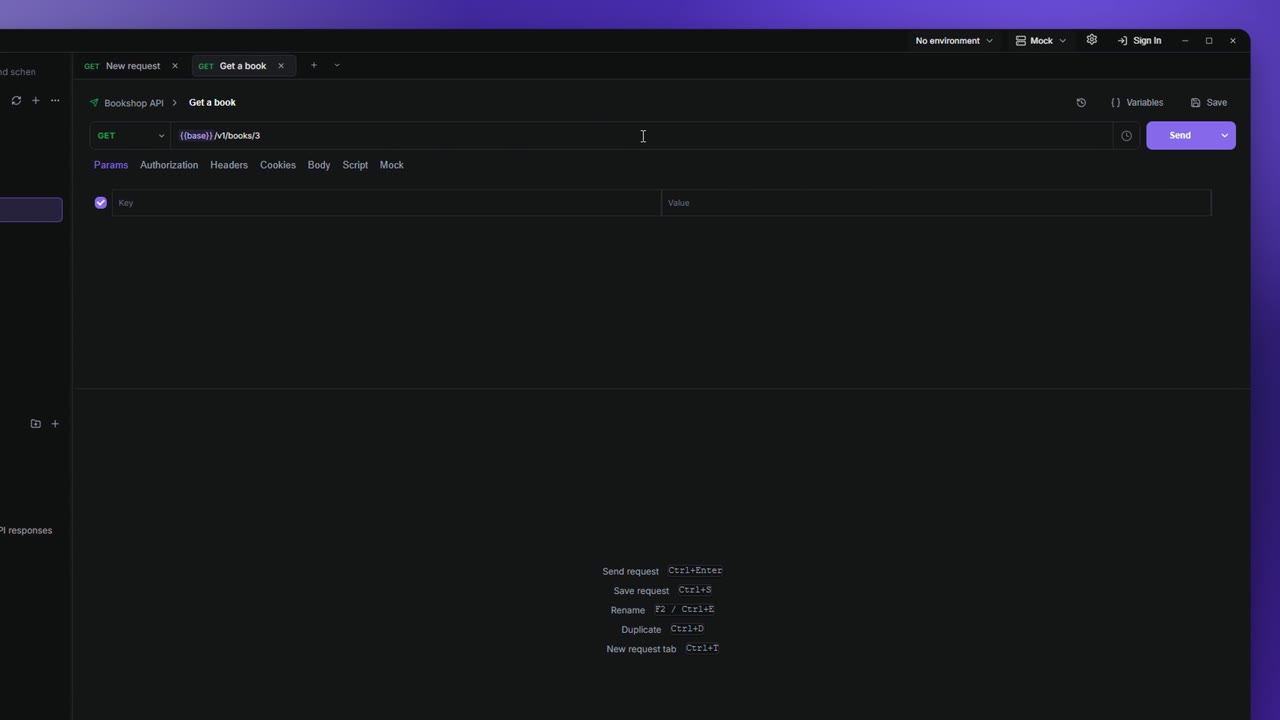
The Git page keeps your work in your own git repository. A workspace's collections, requests, environments and variables go there as readable YAML files. Your documents, boards and projects go there too, documents as Markdown. You choose when to send changes, you can see exactly what changed, and you can bring back any earlier version of a single request or page.
Git works in the desktop app. It works signed out of Apiboo as well, apart from GitHub, which is linked through your Apiboo account. You don't even need a server: a workspace can keep its history on this device only, and you can add GitHub, GitLab or another server later (see Track on this device).
Open the Git page
- Click Git on the rail (the branch icon, below History). A dot on it means changes are waiting to be synced; a red dot means a sync failed.
- In the workspace switcher, open … on a workspace and choose Open Git page. The page opens with that workspace selected.
- In Settings, Account → Git providers → Open Git page.
- In the status bar at the bottom, click the sync status of the current workspace (for example Synced · 2 min ago).
At the top are your git accounts, in one strip, and Clone a repository. Below them, every workspace is a pill under Workspaces, and your projects, boards and documents (and each team's) are pills under Projects, boards & documents. A pill shows how many changes are waiting and a dot for its state: green synced, amber waiting, red failed, grey not in a repository yet.
Click a pill to show it in the card below:
| Part of the card | What's in it |
|---|---|
| The head | Its name and status, where it syncs (owner/repository · branch), Sync now, Pull and the button that opens it on GitHub or GitLab. … holds the rarely used actions, such as Copy repository address. |
| Changes | What changed since the last sync. |
| History | Every sync. |
A workspace that isn't in a repository yet shows Connect to a repository instead. A folder that is its own repository shows its path; you commit it with your own git tools.
Clone a repository opens a workspace from a repository (see Clone a repository). The refresh button in the title bar (Check sync status) looks at every repository again.
Accounts
GitHub
GitHub is linked to your Apiboo account, so it follows you to every device.
- Sign in to Apiboo (see Sign in).
- On the Git page, click Sign in next to GitHub in the accounts strip. Your Apiboo account page opens in the browser.
- Link GitHub there and approve it. Apiboo shows Continue in your browser meanwhile (Cancel stops waiting) and updates by itself once you're done: the strip shows your GitHub name. If you don't finish within three minutes, Apiboo stops waiting and says so; click Sign in again.
If GitHub is already linked to your account, a new device shows your GitHub name right after you sign in to Apiboo; there's nothing to click. Until you sign in to Apiboo, it says Sign in to Apiboo first.
GitLab
GitLab.com and self-managed GitLab servers sign in with a personal access token. You can add several accounts.
- Click + Other in the accounts strip and pick GitLab.
- Enter the Server (
https://gitlab.comor your own server's address). - Paste a Personal access token. Create it in GitLab under Preferences → Access tokens with the scopes
apiandwrite_repository. - Click Add account. The strip then shows GitLab and your user name; point at it to see the server. Sign out next to it removes the account.
The token is kept in your system keychain, never in a file or a repository. The server must use https://.
Any other git server
Gitea, Forgejo, Codeberg, Bitbucket or your company's server work too, with Other git server (URL + Vault sign-in) in the Connect and Clone dialogs. They don't appear in the accounts strip: each repository signs in with an item from your Vault.
- For an
https://address, a Password item with your user name and an access token. - For
ssh://orgit@host:addresses, an SFTP connection item with your SSH key.
Apiboo stores only which Vault item to use. The secret stays in the Vault and is read only to talk to that server. The Vault has to be unlocked to pick an item.
Connect a workspace
- Click the workspace's pill, then Connect to a repository.
- Pick the Account, if you have more than one.
- For GitHub and GitLab, check the Owner (your user, an organization or a GitLab group such as
team/backend) and the Repository name. It's filled in from the workspace name. - Leave Create as a private repository ticked, unless the repository should be public.
- Click Connect & push.
A repository that doesn't exist yet is created. If it already holds an Apiboo workspace, Apiboo brings its content in first and then pushes yours. For Other git server, enter the Repository URL and choose Sign in with (from your Vault); there, the repository must already exist. If the Vault is locked, click Unlock Vault… right there: once it is open, the list of items appears in the same dialog.
Its card then shows owner/repository · branch and its status, with Sync now and Pull.
Track on this device
Keep a workspace's history without any server — every saved version stays on this computer:
- Click the workspace's pill, then Connect to a repository.
- Pick This device only (no remote) as the Account. It's chosen for you when you aren't signed in to any git account.
- Click Start tracking. The first version is saved right away.
The workspace then shows Only on this device · main and its status, for example Saved on this device · 2 min ago or 2 changes not saved yet. Its card has these actions:
| Action | Does |
|---|---|
| Save version | Saves what changed as a new version (a git commit). Nothing is sent anywhere. |
| Add a remote | Sends the saved versions to GitHub, GitLab or another server (see below). |
| … → Stop tracking | Deletes the saved versions on this device, after asking. The workspace itself stays as it is. |
Changes, History, Restore this version, Discard this change and the request's History button all work as they do with a server; they say "saved version" instead of "sync".
Add a remote later
Click Add a remote on its card and pick where the history should go, the same way as in Connect a workspace. Add & push sends every saved version unchanged: the same versions, in the same order, appear in the repository. If the new repository already has a first commit (a README), it is merged in.
- On GitHub and GitLab, a repository that doesn't exist yet is created.
- On Other git server, the repository must already exist.
- A repository that already holds a different workspace is refused — nothing is sent and the workspace stays on this device. Choose a new or empty repository, or clone the other one as a separate workspace.
- The secret check runs first. If you once saved a version with Commit anyway, Apiboo warns you that those older versions are sent too.
Afterwards the workspace is an ordinary synced workspace with Sync now and Pull.
Signing out
Signing out never deletes a git history on its own: every repository on this device stays, including commits not pushed yet, unless you choose Remove and sign out. Each account has its own: sign back in and yours are there; another account signing in on this device sees only its own.
When you sign out, the sign-out dialog lists the workspace histories that exist only on this device. Keep on this device and sign out keeps them (with every saved version); they are connected again when you sign back in. Remove and sign out deletes them, and those workspaces are no longer tracked with git when you sign back in. Workspaces synced to a server keep their link: their history is on the server.
If the history folder of a tracked workspace goes missing, its card says History missing on this device; the next Save version starts a new history and tells you so.
Sync and pull
Apiboo never commits or pushes by itself. You decide when:
- Sync now commits what changed and pushes it. If the repository has newer changes, the status says The remote moved on — pull, then sync again.
- Pull gets the changes from the repository into Apiboo.
- The icon next to Pull opens the repository on GitHub or GitLab.
The status in the card (and the dot on the pill) tells you where it stands:
| Status | Meaning |
|---|---|
| N changes waiting | You changed something since the last sync. |
| N updates on the remote | The repository has changes you haven't pulled. |
| Synced · 2 min ago | Everything is sent. |
| Waiting to send · offline | The commit is made; it goes out when you're back online. |
| Sync failed | Read the message under the name, then Retry. |
Offline? Sync now still makes the commit, and Apiboo sends it as soon as the connection is back: when the app starts, when the network returns, and every two minutes. If it needs you (to sign in again or to decide a conflict), the card says so and waits for Sync now.
Conflicts
When you and someone else changed the same file, Resolve sync conflicts lists every file that differs. Pick Local (yours) or Remote (theirs) per file, or Keep all local / Keep all remote, then Resolve & push. Each file starts on Remote.
Changes
Changes since the last sync lists what you changed in the selected workspace, grouped into requests, folders, collections, environments and variables. Each item is marked A (added), M (changed), D (deleted) or R (renamed), with the number of fields that changed.
- Click an item to see each changed field: the old value (−) above the new one (+). Show file diff shows the file itself.
- Discard this change puts the item back the way it was at the last sync. Your change is lost, so Apiboo asks first.
- Refresh looks for changes again.
Changes and History are the card's two tabs; the number on Changes is how many items are waiting.
History and restore
History lists every sync, newest first: when, what changed and who synced it. Expand one to see its items — a large sync shows 50 at a time, with Show 50 more. Restore this version on an item puts that version back into Apiboo; the next sync records it as a new change.
A single request has its own history too: the History button (a clock with a turning arrow) in the request's header, next to Save, lists every synced version of it, such as Created, Changed or Renamed (was "…"). Restoring an old version brings back the same request, not a copy. Documents and tasks have the same button once your boards and documents are connected.
Clone a repository
To open a workspace that lives in a repository, for example one a colleague connected:
- Click Clone a repository at the top of the Git page.
- Pick where it's Clone from: GitHub, one of your GitLab accounts, or Other git server (URL + Vault sign-in).
- Choose the repository. With GitHub signed in, pick from My repositories (only repositories that hold an Apiboo workspace, unless you tick Show all repositories) or Paste URL. Public GitHub repositories also clone without signing in.
- Optionally give it a Workspace Name; it defaults to the repository's name.
- Click Clone repository.
What goes into the repository
A workspace is written as plain files, one per request, so a change shows up as a readable diff and merges like code:
| File | Holds |
|---|---|
apiboo.yaml | The workspace: its id and name. |
collections/<name>/collection.yaml | A collection: folders, settings, scripts, auth. |
collections/<name>/requests/<name>.yaml | One request each. |
environments/<name>.yaml | An environment. |
variables/globals.yaml, variables/workspace.yaml | Global and workspace variables. |
.gitignore, .gitattributes | Apiboo keeps its own block in them; your lines stay. |
Secret variables never reach the repository. A variable marked secret is written without its value; the value stays in a *.local.yaml file next to it, which git ignores. Variables that aren't secret keep their values in git.
Never in a repository: the Vault, your keychain and certificates, chat, the Mail catcher, and this device's own settings such as the selected environment.
Secret check
Before every commit, Apiboo looks for anything that looks like a password, token or key: API keys, GitHub, Slack, AWS and Google keys, JWTs, private keys, URLs with a password in them, and credential-named fields with a long value. Obvious placeholders pass: example words such as user:password@host or your-password, <password>, ***, and references such as ${DB_PASSWORD}.
If it finds one, Nothing was committed lists the file and line (never the value) and how to fix it:
- In a workspace: move the value into a secret variable and use
{{name}}instead. - In a task or document: open it and replace the value with a placeholder such as
<password>. Keep the real one in the Vault.
Then sync again. Only if you're sure, type commit anyway and click Commit anyway.
Projects, boards and documents
The My projects, boards & documents pill connects your own projects, boards and documents to a repository: click it, then Connect to a repository, the same way as for a workspace. Once connected, its card has the same Changes and History tabs: new, changed and deleted tasks, documents, boards and projects, each change field by field. Like a workspace, it can also be tracked on this device only (This device only (no remote), see Track on this device): Save version keeps a version of every page, task and project, the History button on a page or task restores one, and Add a remote sends them to a server later. Each team has its own pill. A team's owners and admins connect it, and the repository is then stored with the team: on every member's devices its card says This team syncs with the repository, with one button, Join. You join with your own GitHub or GitLab account, or a Vault item for another server — nobody's sign-in is shared. In …, owners and admins can also Move the team to another repository (everyone has to join the new one) or Remove the team's repository.
| Folder | Holds |
|---|---|
documents/ | Every page as a Markdown file (.md), subpages in a folder named after their page, images under documents/media/. |
boards/<name>/ | board.yaml with the lists and labels, and one Markdown file per task in tasks/, with its comments. |
projects/ | One YAML file per project, plus how they link together. |
Other files in the repository, such as a README or your code, are never touched. Images come along; videos only up to 10 MB, larger ones stay a link. If a pull would delete more than ten items at once, Apiboo keeps them and tells you, so a mistake in the repository can't wipe your pages.
Link a project to its code
A project can point at the repositories of its code: open the project and click Link repository. Enter the Repository URL (or choose a local clone on this computer), a name, the Default branch and a description. Team projects take a URL only. The link is a reference, never a sign-in: a password or token in the URL is refused. In the Projects & Graph, the repository shows as a Code repository node that opens it in the browser.
A link saved by an older version with a token or password in its address is shown with Needs fixing instead of being hidden. Remove it with ×, then link the repository again and choose a Vault item for the sign-in. Apiboo never shows the address itself, only the server's name.
Limits
- Git is in the desktop app only, not in the web app.
- A workspace, or My projects, boards & documents, tracked on this device only can't be shared until you add a remote. Teams connect to a server only: a team's history has to be shared.
- Plain
http://addresses are only accepted for servers on this computer. - Files over 48 MB in a repository aren't read; the document keeps a link.
- Renaming a linked workspace in Apiboo renames it on this device only; the repository keeps its name.