
Deploying with an agent
Let an agent run commands on your servers over MCP, with your approval on every one.
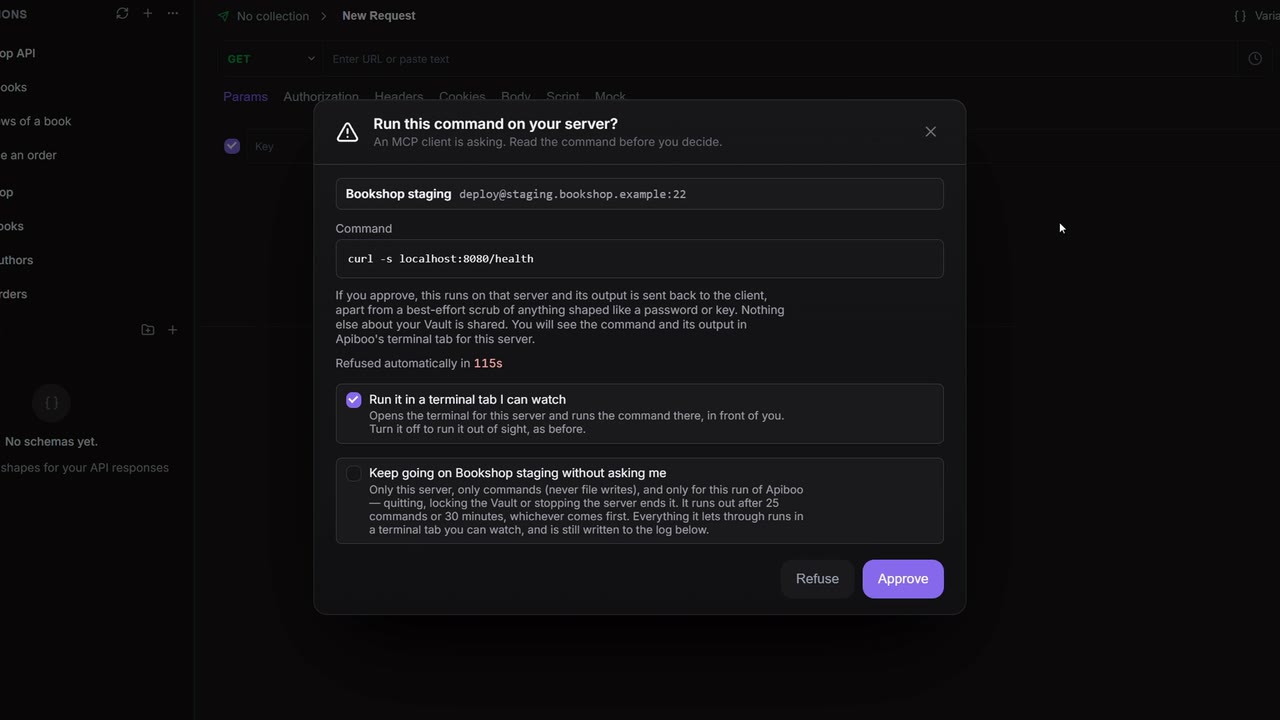
An agent connected to the MCP Server can deploy for you: pull the code on your staging server, run your deploy script, check the service came up. It does this on the SSH connections saved in your Vault, and nothing runs until you press Approve. The agent never sees a password, a key or even the server's address, only the name you gave the connection.
The four gates
All four must be open before a single command can run:
| Gate | Where | Starts |
|---|---|---|
| 1. Terminal — write | Settings → MCP server → What clients may do | Off |
| 2. Allow destructive operations | Settings → MCP server → Destructive operations | Off |
| 3. The servers you ticked | Settings → MCP server → Terminal — which servers | Nothing ticked |
| 4. Your Approve | A card in Apiboo, for every command | — |
Your Vault must also be unlocked, because that's where the login is.
Allow all opens gate 1 but never gate 2, and there is no "allow all" for servers: a connection you haven't ticked doesn't exist as far as the MCP server is concerned. With gate 1 or 2 closed, the agent doesn't even see the tools that run commands or write files.
Choose the servers
- Save the server in the Vault as an SFTP connection with the protocol SFTP. Only your personal items can be used, not team ones.
- In Settings → MCP server → Terminal — which servers, tick it. Each row shows the name and
user@host:port. - To take one back, untick it. An item you deleted from the Vault shows "No longer in your Vault." with Remove.
While the Vault is locked, you can't change the ticks, but the ones you set still apply.
What the agent sees
| The agent sees | Only you see |
|---|---|
| The connection's name, for example "Bookshop staging" | user@host:port, on the approval card and in Settings |
| The command's exit code and output | The password or private key: never shown to anyone, never leaves Apiboo |
terminal_list_connections returns exactly the servers you ticked, by name, and nothing else.
Approve a command
- The agent proposes a command. Apiboo comes to the front, the OS shows "A command is waiting for your approval.", and the card Run this command on your server? opens.
- Read the target (name and
user@host:port) and the Command. It is shown in full, never shortened. Choose:
- Approve runs it. The button is briefly disabled when the card opens, so a stray keypress can't approve.
- Refuse, Esc or the close button refuses it. Refuse has the focus, so Enter refuses too.
- No answer within 120 seconds ("Refused automatically in") refuses it.
One command waits at a time. A refusal is final: the agent is told not to retry it or a variation, and to ask you instead.
Run it in a terminal tab I can watch (on by default) runs the command in Apiboo's terminal tab for that server, in front of you. Turn it off to run it out of sight. The card remembers your last choice.
What happens after Approve
- The command runs over SSH on that server, with a timeout of 30 seconds unless the agent asks for longer, 300 seconds at most.
- The agent collects the result: the exit code and the output, 16 KB per stream. A longer output keeps its start and its end, and the middle is marked as left out; the full output is in Apiboo's tab. In a watched tab, errors arrive together with the normal output.
- Anything shaped like a password or key is scrubbed from the output before it goes to the agent. This is best effort, so approve only commands whose output you are willing to send.
- The result can be collected for 10 minutes after the command finishes.
Send a file
The agent can also write a file to a ticked server with terminal_put_file, for example a config file or a small script:
- up to 256 KB, text or binary;
- to an absolute path, whose folder must already exist;
- over SFTP, replacing whatever is at that path.
It asks for your approval like a command. The card shows File to write, the path, the size and the sha256 of the content, and the first 20 lines ("The first lines only. Approving writes all … bytes to that path and replaces whatever is there now."). Writing a file needs the same four gates.
For anything bigger, such as a build artefact, the agent proposes a command that fetches it on the server instead: git pull, curl or your deploy script.
Keep going without asking
For a series of commands on one server, tick Keep going on … without asking me on the card before you approve:
- it covers this server only, and commands only, never file writes;
- it ends after 25 commands or 30 minutes, whichever comes first;
- every command it lets through runs in the terminal tab you can watch, and is written to the log;
- it lasts only for this run of Apiboo: quitting Apiboo, stopping the MCP server or signing out ends it. While the Vault is locked, nothing runs at all.
While it is on, a pill says Running without asking on … with the commands and minutes left. Stop ends it for that server; with more than one server running without asking, Stop all ends them all. The checkbox starts unticked on every card.
The command log
Below the ticked servers, Settings lists every command MCP has proposed on your servers, newest first, approved, refused and timed out alike:
| Entry | Meaning |
|---|---|
| You approved | You pressed Approve |
| You refused | You pressed Refuse or closed the card |
| Refused — no answer | Nobody answered within 120 seconds |
| Cancelled | The request was cancelled before it ran |
| Refused — server not allowed | The server isn't ticked |
| Refused — Vault locked | The Vault was locked |
Each entry has the full command, the server, where it ran (in a visible terminal tab, in the background or file write (SFTP)), the exit code and how long it took. The output is never recorded. The log is kept on this device, survives a restart and is deleted when you sign out.
Recent requests (see Recent requests) separately shows the last 20 MCP calls of any kind.
Local terminals
Only saved SSH connections can be driven over MCP. Your local terminal panes (PowerShell, bash, WSL and so on) can't: there is no tool for them. The agent's own terminal tab doesn't take typing either; use your own tab for that.
Walkthrough: deploy the Bookshop API to staging
Setup, once: the four gates above, with "Bookshop staging" ticked, and Documents — read and Boards — read and write on.
- You ask: "Deploy the Bookshop API to staging."
- The agent reads your "Deploy" document in the Bookshop project to learn how you deploy, and lists the connections it may use: "Bookshop staging".
- It proposes
cd /srv/bookshop-api && git pull --ff-only && ./deploy.sh. The card shows the command anddeploy@staging.bookshop.test:22. You read it and click Approve, with Run it in a terminal tab I can watch on. - The terminal tab for Bookshop staging opens and you watch the deploy run. The agent collects the exit code and the output.
- It proposes a health check, for example
curl -fsS http://localhost:8080/health, and you approve it too. If a request in your collection fails afterwards,request_diagnosehelps it check the saved request (see Examples). - It comments on the release task on the Bookshop board: deployed, with the commit and the health check result.
If step 3 fails, the agent sees the exit code and the end of the output, tells you what went wrong and proposes the next command. You approve that one, too.