
FTP / SFTP & file editor
Browse remote servers, transfer files and edit them in place.
FTP / SFTP is a two-pane file manager: your computer on the left, the server on the right. Upload and download by dragging, manage files on the server, and edit a remote file in place with a conflict check, so you never overwrite someone else's change by accident.
Connections
A connection is an item in your Vault: FTP / SFTP and the Vault show the same entries. Removing a connection here deletes the Vault item.
| Protocol | Default port | Notes |
|---|---|---|
| SFTP | 22 | Password or private key. Needed for Permissions… and Compress. |
| FTP | 21 | Unencrypted. Logs in with the password. |
| FTPS | 21 | FTP upgraded to TLS on the same connection (explicit FTPS). Implicit FTPS on port 990 is not supported. |
The sidebar lists three kinds of connection, in this order:
- Temporary ones you chose not to save (badge "Temporary", kept until you close Apiboo);
- your own, from your personal Vault;
- your teams' SFTP connections, marked with the team's name. " · Read-only" means you may connect but not edit or remove it.
Add a connection
- Click New connection above the list, or the + in the title bar. If your Vault needs its passphrase, enter it first.
- The New item form opens as an SFTP connection. Fill in:
| Field | What to enter |
|---|---|
| Name | A name for the list, for example "Bookshop staging". Required. |
| Save to | My vault, a team you can write to, or Don’t save (this session only). Shown only when there is a choice. Saving to a team shares the item with that team. |
| Folder | A Vault folder, optional. |
| Protocol | SFTP, FTP or FTPS. Changing it updates a default port. |
| Host | For example staging.bookshop.example. Required. |
| Port | 22 for SFTP, 21 for FTP and FTPS by default. |
| Username | Required. |
| Authentication | Password or Private key. |
| Password | With a Generate password button. |
| Private key (PEM) | Paste text or From file → Choose file…, plus the key's Passphrase if it has one. |
| Initial path | Where to start browsing, for example /var/www. If it cannot be opened, you start in the server's home folder. |
- Click Save.
Connect, edit and remove
- Click a connection to connect. Nothing connects by itself when you open the panel.
- The dot shows the state: grey disconnected, amber connecting, green connected, red failed. After a failure, the main pane shows "Connection failed", the error and Retry.
- The … on a row offers Connect or Disconnect, Edit and Remove. Remove asks first: "Remove? This deletes the vault item." (for a team connection "…for the whole team").
- Filter connections at the top matches the name, the protocol and
user@host:port. - You can be connected to several servers at once; each keeps its own folder and selection.
If the Vault is locked, a Vault locked row sits at the top of the list; click it (or Unlock vault in its menu) to unlock. Connections that are already open keep working.
Browse files
Once connected, the main pane shows Local on the left and Remote · Bookshop staging on the right.
- The path at the top of each pane is a text field: type a path and press Enter to go there, Esc to undo your typing.
- Up one level and Refresh are in each pane's toolbar. The
..row also goes up. - Double-click a folder, or press Enter, to open it.
- Type the first letters of a name to jump to it; typing the same letter again moves to the next match.
- Click Name, Size or Modified to sort; click again to reverse. Folders always come first.
- View options → Show hidden files shows dotfiles such as
.envand.htaccessin both panes. It is on by default.
Select several items
| How | What it does |
|---|---|
| Click | Selects one item. |
| Ctrl+click (Mac: ⌘+click) | Adds or removes an item. |
| Shift+click | Selects a range. |
| Shift+↑/↓ | Extends the selection. |
| Ctrl+A (Mac: ⌘+A) or Select all | Selects everything in the pane. |
A right-click on a selected item acts on the whole selection; the menu shows the count, for example Download (3).
Work with files on the server
Right-click a remote file or folder (or use its … button):
| Item | What it does |
|---|---|
| Open | Opens a folder. |
| Edit | Opens a file in the file editor (see The file editor). |
| Download | Downloads into the folder open in the Local pane. |
| Move to… | Moves to another folder; type an absolute or relative path, .. goes up. |
| Rename | Renames one item. F2 does the same. |
| Permissions… | SFTP only. Tick Read, Write and Execute for Owner, Group and Others, or type the Octal value, then Apply. |
| Compress | SFTP only. Creates a .zip on the server (see below). |
| New folder / New file | Creates an empty folder or file here. |
| Refresh | Reloads the listing. |
| Delete | Deletes after asking. Delete does the same. |
A right-click on empty space in the remote pane offers New folder, New file, Upload here, Select all and Refresh. New folder, New file and Upload files… are also in the remote toolbar, next to Disconnect.
Things to know:
- New folder and New file refuse a name that already exists, including hidden files.
- Delete lists what it deletes and warns "Folders are deleted with all of their contents." If some items fail, the rest are still deleted and the failures are shown.
- Drag to move: drag a file or a selection onto a folder, or onto
.., to move it. A folder cannot go into itself. A name that already exists in the destination is refused, never overwritten. - F2 and Delete work in the remote pane only.
Compress on the server
Compress runs the archiver on the server over SSH, so nothing is downloaded.
- Select the files and folders, right-click and choose Compress.
- Keep the proposed name (
<name>.zip, orarchive.zipfor several items) or type one. A name ending in.tar.gzor.tgzcreates a tar archive instead. - Click Create. When it is done, Apiboo says "Created bookshop-assets.zip".
The server needs zip or python3. If it has neither, Apiboo shows "Zip is not available on this server" with install commands for Debian/Ubuntu, Fedora/RHEL/Rocky and Alpine that you can copy. An archive name cannot contain a path, and an existing name is refused.
Work with local files
Right-click a local item:
| Item | What it does |
|---|---|
| Open | Opens a folder, or a file in its default program on your computer. |
| Edit | Opens a file in the file editor. |
| Compare with remote file… | Compares the file with one on the server (see Compare). |
| Upload | Uploads the file or the whole folder into the open remote folder. |
| Export as… | Packs the selection into a .zip or .tar.gz in a folder you choose. It never overwrites an existing archive. |
| Open file location | Shows the item in Explorer or Finder. |
| Refresh | Reloads the listing. |
The local pane has no delete, rename or new-file actions.
Transfer files
Ways to upload:
- drag files or folders from the Local pane to the Remote pane;
- drag files or folders from Explorer or Finder onto the Remote pane ("Drop files to upload");
- Upload files… in the toolbar, or Upload here on empty space, to pick files;
- double-click a local file, or Upload in its menu.
Ways to download: drag from the Remote pane to the Local pane, double-click a remote file, or Download in its menu. Downloads always go into the folder open in the Local pane; there is no save dialog.
Folders transfer with everything in them, including hidden files. The whole folder is checked first: more than 2000 files or more than 32 levels of subfolders is refused as too big for one go, and a folder whose name already exists at the destination is refused. Links and names that cannot be written there are skipped and listed.
When a file already exists, Apiboo asks, "File already exists", with Skip, Replace, and for several clashes Skip all and Replace all. Esc means Skip. Replacing cannot be undone.
The transfers panel
The Transfers panel under the panes appears while there are transfers. Click its header to collapse it. Each row shows the direction, the name, a progress bar, the amount sent, and while running the speed and time left, for example 1.4 MB/s · 3m 05s.
- × on a running transfer cancels it; the partial file is removed.
- Successful transfers disappear after a few seconds. Failed or cancelled ones stay until you click their × or Clear in the header.
The file editor
Choose Edit on a remote or local file to open it in the editor, with syntax highlighting for JSON, JavaScript and TypeScript, HTML, CSS, XML/SVG and SQL, and the app's light or dark theme.
- Files up to 2 MB of UTF-8 text can be edited. A bigger file says "This file is too large to edit here (2 MB limit). Download it instead."; a binary one says "This is not a text file."
- A dot next to the name means unsaved changes. Save or Ctrl+S (Mac: ⌘+S) writes the file back; "Saved" confirms it.
- Close with × or Esc. With unsaved changes Apiboo asks "Discard unsaved changes?" with Discard and Keep editing.
When the file changed meanwhile
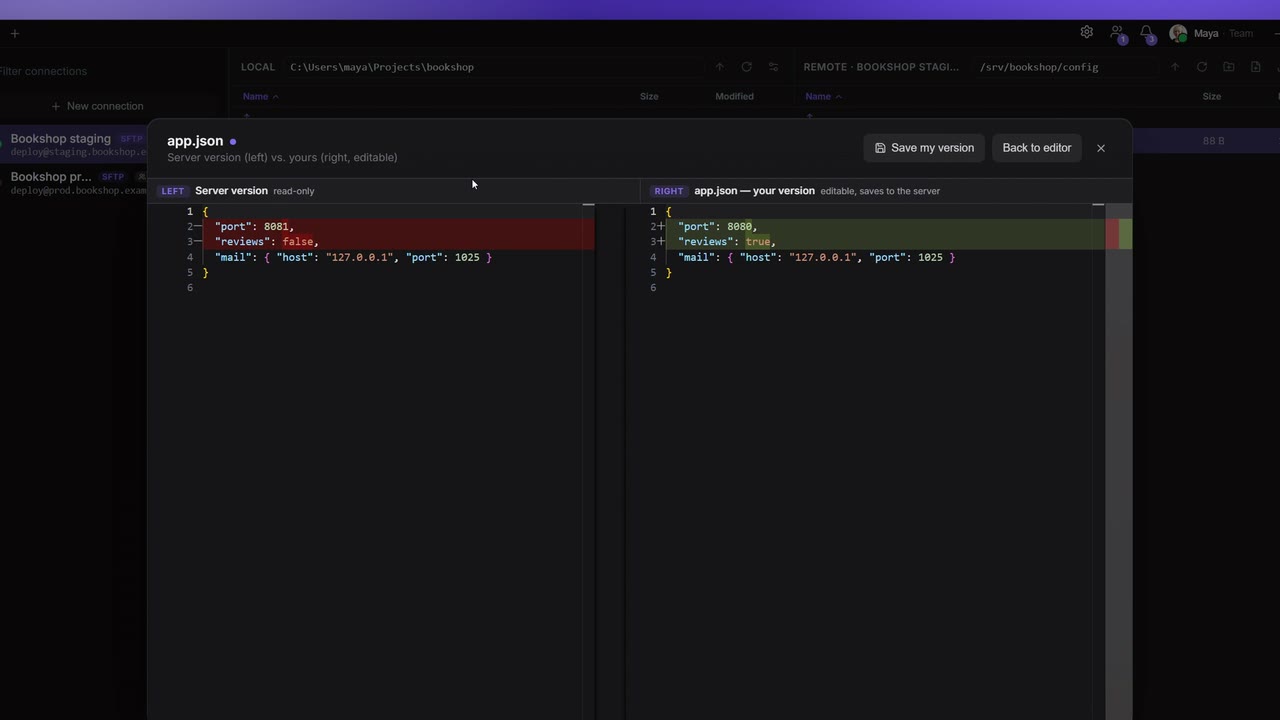
When you save, Apiboo checks whether the file was changed on the server (or on disk) after you opened it. If it was, nothing is written and a bar says "This file changed on the server after you opened it." with:
- View diff: the server's version on the left (read-only) and yours on the right (editable). Adjust your side, then Save my version, or go Back to editor.
- Overwrite: saves your version anyway.
- Cancel: keeps editing without saving.
Compare
Compare in the editor's header compares the open file with With clipboard or With a local file…. The left side is a scratch copy that is never saved; the right side is your file. Copy a single change across with the arrows, or the whole left side with Copy. Exit compare returns to the editor.
To compare a local file with its copy on the server, right-click it in the Local pane and choose Compare with remote file…. Pick the server file (one with the same name is preselected and marked "same name") or type any path, then click Compare. The editor opens your local file on the right, with the server file on the left.