
Chat
Direct messages and channels, reactions, forwards and shares.
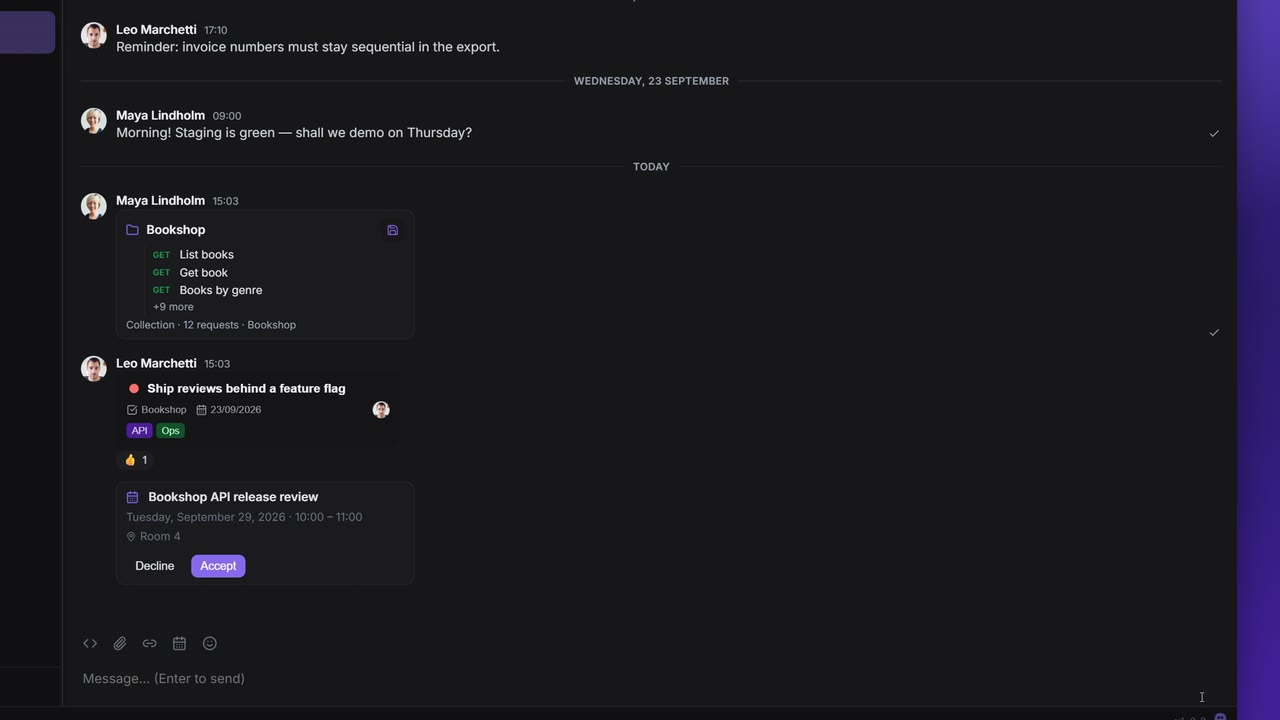
Chat lives on the rail. It has direct messages with one person, and channels for a group. Besides text you can send code, files and images, and you can share your Apiboo work straight into a conversation: tasks, collections, requests, appointments and Vault secrets.
Conversations
The chat sidebar lists your conversations. Its field at the top does two jobs:
- type a few letters to filter the list;
- type someone's full email address to start a direct message with them.
Right-click a conversation for Mute / Unmute and, in a channel, Leave channel. A muted conversation shows Muted.
Create a channel
- In the chat sidebar, click New channel. The Create channel modal opens.
- Under Icon, pick one of the five colours, or click Upload image (or the preview itself) to use a picture: PNG, JPG, WebP or GIF, up to 5 MB. You crop it in Crop channel icon and confirm with Use image. Replace image and Remove change it again.
- Enter the Name. It shows with a
#in front, for example#bookshop-api. - Under Add people (optional), type a person's full email address and pick them from the result. Each person becomes a chip; the × on a chip removes them.
- Click Create channel. The button stays disabled until the channel has a name.
You can add people later, too: click the member count in the conversation header (View members) and use Add by email…. The channel's owner and admins can add and remove members there; everyone else can leave.
Write messages
| To | Do this |
|---|---|
| Send | Enter |
| Add a new line | Shift+Enter |
| Write code | Click Code block, pick the language, send with Ctrl/Cmd+Enter |
| Attach a file | Click the paperclip: JPG, JPEG, PNG, GIF, WebP, PDF, TXT, JSON, CSV, LOG, MD or ZIP |
| Add an emoji | Click Emoji |
The paperclip's tooltip shows your plan's size limit for one file.
A message that is too long for chat is not lost. With Send long messages as a file on (Settings → Extensions → Chat), anything over the Size limit (1–15 KB, 12 KB by default) is attached as a .txt file instead. The limit counts bytes of UTF-8 text, so scripts that use 2–4 bytes per character reach it sooner. Show size indicator shows how much of the limit you have used once you pass three quarters.
Reactions, replies, forwards
Hover a message and its toolbar appears:
| Button | What it does |
|---|---|
| Add reaction | Opens the emoji picker. The reaction appears under the message with a count. |
| Reply | Quotes the message above your next one. |
| Forward | Opens Forward to…: pick another conversation and the message is sent there. |
| Edit | Your own text and code messages only. Enter saves (Ctrl/Cmd+Enter for code), Esc cancels. Edited messages show (edited). |
| Unsend | Your own messages. Asks you to confirm, then removes it. |
Click a reaction pill to add or take back the same reaction; hover it to see who reacted.
A forwarded message is marked as a forward, so you can find it later with has:forward (see Filter by content: has:). Only forwards sent since the marker was introduced carry it. Encrypted attachments (images and files) cannot be forwarded, because they can only be opened in the conversation they were sent to.
Share your work into a conversation
| What | Where you share it from | What the other person gets |
|---|---|---|
| Workspace, collection or request | The composer's Share a workspace, collection or request button, or right-click a collection or request in the sidebar → Share → In Chat… | A card. A request has Open in request builder and Save to a collection…; a collection or workspace has Save to a workspace…. |
| Appointment | The composer's Share an appointment button | An invitation card with Accept and Decline. Accepting adds it to their calendar (In your calendar). |
| Task | Send to chat on a task on a team board | A task card they can click to open it (see below) |
| Vault secret | Share in chat… on a Vault item | A locked card with the item's name. They click Decrypt (their own Vault must be unlocked) and can then reveal, copy or Save to vault. See Share a secret. |
The task quick view
Send to chat on a task (on its card, or in the task's detail view) opens Send task to a teammate. Pick a person you already have a direct message with; only tasks on a team board can be shared.
The recipient clicks the task card, and the task opens in its own window right inside the chat. They can read and edit it there without leaving the conversation for the board, and the change is saved to the board. If the task was deleted, or they are not on that team, the card says so instead.
Search and export
The search field and the More options (…) menu sit in the conversation header. Search finds messages with Discord-style filters such as has:task or from:Maya; the menu has Export chat history and Mute. Both are on their own page: Chat search & export.
Settings
Settings → Chat:
| Setting | What it does |
|---|---|
| Show link previews | Shows a preview card for links, or the image inline for a direct image or GIF link. This contacts the linked site from your device, so the site sees your IP address. Off by default. |
| Send read receipts | Lets others see when you have read their messages. When it is off, you don't see theirs either. On by default. |
Settings → Extensions → Chat has Send long messages as a file, Size limit and Show size indicator (see Write messages).
Chat on each plan
| Free | Paid plans | |
|---|---|---|
| Direct messages, channels you are invited to | Yes | Yes |
| Create your own channels | No | Yes |
| History you can read | The last 90 days | All of it |
| Export chat history | No | Yes |
On Free, older messages are not deleted. They are only hidden from you and come back the moment you upgrade. The window is yours, not the conversation's: people on a paid plan in the same channel still see everything.