
GraphQL, gRPC, WebSocket & SSE
Requests beyond REST: GraphQL, gRPC, WebSocket and server-sent events, plus mock examples and the local mock server.
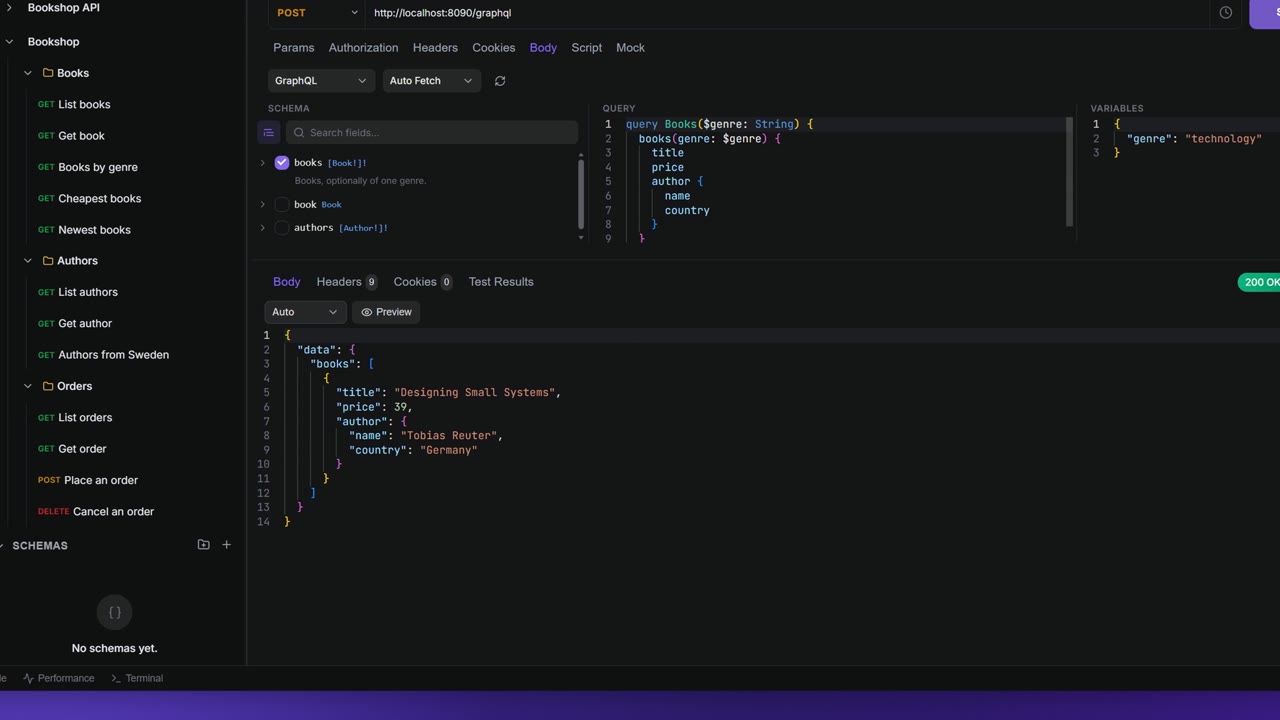
Not every API is plain request and response. Apiboo also speaks GraphQL, WebSocket, Server-Sent Events and gRPC, each in a request tab of its own that you save to collections like any other request. This page covers each one, the message log they share, and the mock server that answers your requests with examples you define.
Pick a protocol
Click + in the tab strip, or right-click a collection or folder and choose Add, then pick GraphQL, WebSocket, Server-Sent Events or gRPC (see Create a request). Each kind shows its protocol's icon on the tab. New tabs start as "New GraphQL query", "New WebSocket", "New SSE stream" or "New gRPC call".
GraphQL
A GraphQL request is an HTTP request with the GraphQL body. Choosing GraphQL sets the method to POST and adds a Content-Type: application/json header. On the Body tab you get three panes:
| Pane | Holds |
|---|---|
| Schema | The schema explorer: the query fields the server offers, with a search box (Search fields…) and Show descriptions / Hide descriptions. |
| Query | The query, with GraphQL highlighting. |
| Variables | The query's variables, as JSON. |
Load the schema
The explorer needs the server's schema, which Apiboo fetches with an introspection query. The picker above the panes decides when:
- No schema (the default): nothing is fetched until you click Refresh schema.
- Auto Fetch: the schema is fetched each time the URL changes.
The fetch sends the request's headers (with variables filled in), so an API that needs a token for introspection works as long as the token is set.
Build a query
Tick fields and arguments in the Schema explorer, and Apiboo writes the query for you. When you open a saved query, the matching fields are ticked again. You can also type the query directly.
WebSocket
- Enter a
ws://orwss://URL, for examplews://localhost:4180/v1/orders/feed. - Click Connect (or press Enter in the URL). The status next to it goes from Connecting… to Connected.
- Type a message on the Message tab. Pick JSON or Text for the editor.
- Click Send or press Ctrl+Enter.
- Disconnect closes the connection. While connecting, the button reads Cancel.
The tab has three sections:
| Tab | What's there |
|---|---|
| Message | The message editor. |
| Headers | Extra headers for the opening handshake. Headers the handshake sets itself, such as Host or Sec-WebSocket-Key, can't be changed. |
| Settings | Connection settings (below). |
WebSocket settings
| Setting | Default | Range |
|---|---|---|
| Verify the server certificate | On | On or off |
| Handshake timeout | 0 (30 seconds) | 0–600 seconds |
| Maximum message size | 0 (64 MB) | 0–1024 MB. A bigger message closes the connection with code 1009. |
| Reconnection attempts | 0 (never) | 0–100 |
| Reconnection interval | 5 seconds | 1–600 seconds |
Binary messages appear in the log as base64. WebSocket connections don't go through the proxy from Settings → Proxy.
Server-Sent Events
A Server-Sent Events tab listens to a stream of events.
- Pick GET or POST and enter the URL.
- Add headers on Headers, a JSON body on Body (POST only), and a Bearer Token on Auth if the stream needs one.
- Click Connect. The status shows Connected and how long the stream has been open.
- Disconnect stops it.
Apiboo sends Accept: text/event-stream and Cache-Control: no-cache for you. If the connection drops, it reconnects on its own: after 3 seconds, or after the delay the server asks for with retry:. On reconnect it sends Last-Event-ID so the server can continue where it stopped.
Each event appears in the log with its event name as a tag. A [DONE] event shows as "[DONE] — the stream ended".
Streams in an ordinary HTTP request
You don't always need an SSE tab. When a normal HTTP request gets a text/event-stream response, the desktop app streams it: the response shows 200 OK · Streaming, events arrive in the log as they come, and Send turns into Stop. The stream's state reads Streaming, Stream ended, Stopped or Stream broke.
Post-response scripts don't run for a streamed response, and there's no body to save.
gRPC
gRPC works in the desktop app. A gRPC tab has an address, a method picker and an Invoke button.
- Enter the server address, for example
localhost:50051. - Load the service definition on the Service definition tab: Server Reflection asks the server, Load .proto reads a
.protofile (its imports are found next to it). The tab shows how many services and methods were found. - Tick TLS if the server uses TLS.
- Pick the method under Select a method. Methods are shown as "Service / Method", and streaming ones are marked "(stream)".
- Write the request message as JSON on the Message tab, and add metadata on Metadata.
- Click Invoke.
The Response pane shows the gRPC status (such as OK), the time, the response as JSON and the Trailers. A server-streaming method fills the log with one row per message instead.
The message log
WebSocket, SSE, streamed HTTP responses and gRPC streams share one log.
| Part | Does |
|---|---|
| Columns | Direction, payload and time. The newest entry is at the top. |
| Search | Filters entries by text. |
| Filter | All messages, Received, Sent or Connection. |
| Clear (Clear the log) | Empties the log. |
Click an entry to see it in full. Show as switches between Text, JSON, XML and HTML; Apiboo picks one for you. Connection rows record the connect, the disconnect and any reconnect attempts. In the desktop app, the connect row also holds the handshake's request and response headers.
The log keeps the last 1,000 entries and tells you when older ones were dropped.
Connections stay open
A WebSocket connection belongs to its tab, not to whatever you're looking at. Switch to another tab and back, and the connection, its log and your unsent message are still there. A dot on the tab shows that it is connected.
A connection closes when you close its tab, close all tabs or switch workspace.
Mock examples
A mock example is a canned response for an HTTP request, so you can work against an API that isn't built yet. Click Mock in the request's tab row to open them.
- Save the request to a collection first. The dialog then shows its Mock URL.
- Click Add example.
- Give it a name, a Status (200 by default), a Content-Type and the Response body. Add Response headers if you need them.
- Switch the example on or off with its Active toggle.
To choose between several examples, use Match query params and Match headers: an example only answers when the request carries those values. Of the examples that match, the one matching the most wins (a query value counts more than a header). If none match, the first active example answers.
The Source can be Example (the body you typed) or Schema (data generated from a schema you design in the Schemas section of the API Client sidebar).
Postman saved responses become mock examples when you import a collection (see What comes across).
The local mock server
The mock server answers requests with your mock examples. It runs in the desktop app, on your machine only.
- Click the server icon with the small arrow in the title bar (on API Client and History).
- Click Local Mock to start it. The icon turns green, and its tooltip says which port it runs on.
- Copy a request's Mock URL from its Mock dialog and call it from your app or from Apiboo.
Mock URLs look like http://127.0.0.1:8780/mock/<collection id>/<path>. The server starts on port 8780 and tries the next ports if that one is taken. It matches the method and the exact path; there are no path parameters, so /books/1 and /books/2 are two routes. CORS is allowed, and changes to your examples take effect right away while it runs.
Click Local Mock again to stop it.
Cloud Mock, in the same menu, serves your mocks from a URL hosted by Apiboo, so they work without your computer. It needs a paid plan and a cloud or team workspace (see Account & plans).