
Vault
Secrets and passkeys, the Bitwarden import, auto-lock and secure sharing.
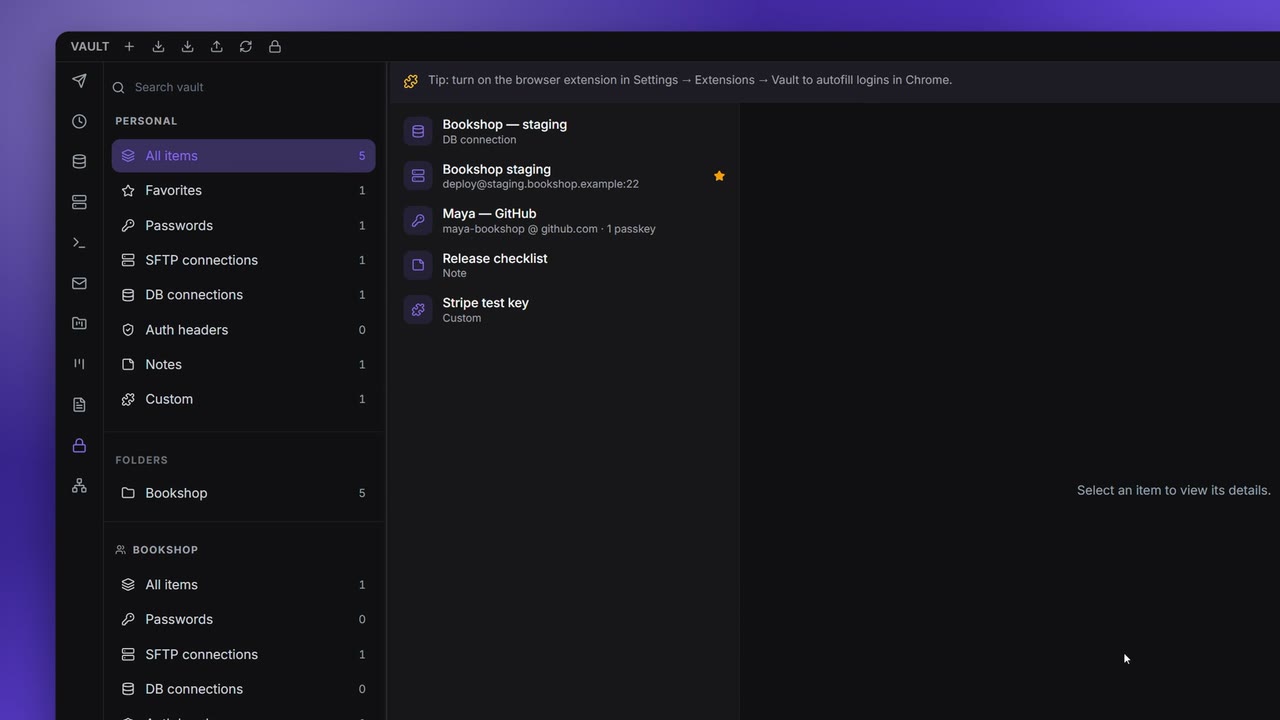
The Vault keeps your passwords, server logins, database connections and API headers encrypted with a passphrase only you know. The Terminal, FTP and DB Manager connect with its items, and AI agents only ever see an item's name.
Create your vault
The first time you open Vault on the rail, Apiboo asks you to create it:
- Create your vault passphrase: enter a Passphrase of at least 12 characters and repeat it in Confirm passphrase. This is not your Apiboo account password; it is a separate passphrase for the vault.
- Click Create vault.
- Save your recovery phrase: 12 words that are the only other way into your vault. Copy phrase (the clipboard is cleared after 60 seconds) or Save to file, and keep them somewhere safe.
- Confirm you saved it by typing the two words it asks for.
On another device signed in to the same account, Unlock your vault brings the existing vault to it with your passphrase or recovery phrase.
Unlock and lock
The vault is locked every time Apiboo starts. Enter your Passphrase and click Unlock. Forgot it? Forgot your passphrase? Use your recovery phrase.
It locks again when you:
- click Lock vault in the Vault's title bar;
- sign out;
- are away longer than the auto-lock time (see Auto-lock);
- put the computer to sleep or lock the screen (Windows).
To change the passphrase, go to Settings → Extensions → Vault → Vault passphrase → Change passphrase. You can also generate a new recovery phrase there.
Items
Click New item and Choose what to store:
| Type | Fields |
|---|---|
| Password | Name, Folder, URL, Username, Password (Generate password makes a 20-character one), TOTP secret, Notes. Passkeys for the site are listed here too. |
| SFTP connection | Protocol (SFTP, FTP or FTPS), Host, Port, Username, and a Password or a Private key (paste it or load it from a file) with its Passphrase, Initial path, Notes |
| DB connection | Engine (MySQL, PostgreSQL or SQLite), Host, Port, Database, Username, Password, Require SSL, Notes. SQLite only needs the database file. |
| Auth header | Header name, Header value, Source environment, Notes |
| Note | A text note |
| Custom | Your own key/value fields, each marked Secret or not |
The sidebar sorts items into All items, Favorites, Passwords, SFTP connections, DB connections, Auth headers, Notes and Custom, plus your Folders (New folder). Search vault matches names and non-secret details such as the username, the site, the host and the header name.
An item's menu has Edit, Add to favorites, Share in chat…, Create secret link… and Delete. Copied secrets are cleared from the clipboard after 60 seconds.
Where items are used
- Terminal: SFTP connections are your saved SSH servers. The login stays inside Apiboo's core and is never handed to the interface or an extension.
- FTP / SFTP and DB Manager: SFTP and DB connections are the saved connections there.
- Graph: databases and SSH hosts appear while the vault is unlocked.
Passkeys
With the Apiboo Chrome extension, the Vault is a passkey manager for websites. When a site asks Chrome to create a passkey, Apiboo shows Create a passkey for the site: choose the item to Save this passkey to (or Create a new item) and click Approve, or Deny. Signing in later shows Sign in to the site the same way.
Turn it on in Settings → Extensions → Vault → Passkeys:
- Switch on Chrome extension autofill and pair the extension.
- Switch on Use passkeys stored in Apiboo.
- Choose How Apiboo asks before using a passkey: In the app or In the browser.
Apiboo never asks you to approve a passkey inside the web page itself. A Password item lists its passkeys with when they were created and last used, and you can rename or delete each one. Deleting a passkey destroys its private key for good.
Import from Bitwarden and others
Click Import from file in the Vault's title bar and choose Import from:
| Source | What comes in |
|---|---|
| Bitwarden (JSON) | Logins as Password items with their passkeys, secure notes as Notes, cards and identities as Custom items, and your folders |
| Bitwarden (CSV) | The same, without passkeys |
| LastPass (CSV) | Your LastPass items, with their folders |
| Apiboo (JSON) | An Apiboo export, also an encrypted one (enter its file password) |
Skip duplicates leaves out items with the same name, username and site. The import tells you how many items and passkeys it brought in and skipped.
Import from environments (also in the title bar) turns secret environment variables into Auth header items.
Auto-lock
Settings → Extensions → Vault → Auto-lock:
| Setting | Choices | Default |
|---|---|---|
| Lock the vault after inactivity | 5, 15 or 30 minutes; 1, 2, 4, 8 or 24 hours; Never | 1 hour |
| Lock when the computer goes to sleep | On / off | On |
| Lock when the screen locks | On / off | On |
Inactivity means no activity anywhere in Apiboo, not just in the vault. The two sleep and screen-lock switches work on Windows; on other systems they are greyed out for now. These settings apply to this device only.
Export
Click Export vault in the title bar and choose Export as:
| Format | Protection |
|---|---|
| Encrypted (recommended) | A File password of at least 8 characters, entered twice |
| Plaintext | None |
| Bitwarden CSV (plaintext) | None |
| LastPass CSV (plaintext) | None |
Every export asks you to confirm your passphrase again, because it contains every secret in the vault. A plaintext export also needs the tick "I understand — anyone with this file can read every credential." Passkeys are never exported, not even in the encrypted file.
Share a secret
You have two ways to give someone a secret without pasting it into a message.
Share in chat… sends the item to a conversation, encrypted end to end for each recipient:
- Open the item's menu → Share in chat….
- Pick a conversation, or type a person's exact email address.
- Set an Expiry: No expiry (the default), 1 hour, 24 hours or 7 days.
- Send it. The recipient sees a locked card with the item's name, clicks Decrypt (their own vault must be unlocked), and can reveal, copy or Save to vault. After the expiry, the card says "This secret has expired".
Create secret link… makes a One-time secret link for someone outside Apiboo:
- Link expiry: 1 hour, 24 hours (the default) or 7 days;
- Max views: 1 view (burn after reading) (the default), 3 or 10;
- Generate Secret Link, and later Revoke link if you change your mind.
The key to the secret is only in the link itself, never on our server.
Team vaults
When you create an item you can choose where to Save to: My vault or a team folder. Access is granted per member in Teams → Vault: the whole team vault or a single folder, with Read or Write.
What AI agents can see
An AI agent never sees a secret. Connected over MCP, it sees at most the name of an SSH connection you ticked for it, and uses it to propose a command you approve (see Deploying with an agent). Host, user and port appear only on the approval card on your screen. There is no MCP tool for the vault, and the vault never appears in the Projects & Graph over MCP.
The in-app AI assistant sees the name of SSH and FTP connections, and the name, engine and database name of a DB connection, never a host or a password.