
Every app that sends email needs a place for that email to go in development, where nothing is delivered and everything can be inspected. For years that place was MailHog: a tiny SMTP server with a web inbox, started with one binary or one Docker line. It still works, which is why so many docker-compose files still have it, but its last release dates from 2020 and the project is unmaintained. If you are setting up a new project in 2026, it is time for an alternative.
This post compares the two sensible options: Mailpit, the actively maintained successor most teams pick, and the mail catcher built into Apiboo, which needs no Docker, no port mapping and no extra process because it lives in the desktop app you already have open. We make Apiboo; the facts about its mail catcher match the docs at apiboo.com/docs/data-servers/mail-catcher as of October 2026.
Why move off MailHog
- No maintenance: no releases since 2020, open issues without answers, and dependencies that are years old.
- A weak HTML preview and no checks on the email itself beyond showing it.
- One more container or binary to run, with a port that collides with everything else called 1025.
Mailpit: the straightforward replacement
Mailpit is a single Go binary (or container) that speaks SMTP, keeps messages in a local database and shows them in a web interface, with an HTTP API that test suites can query. It is actively maintained and it is a drop-in for most MailHog setups: same port conventions, same place in docker-compose. If your CI asserts on sent mail, or the catcher has to run on a shared server for the whole team, Mailpit is the right choice and the rest of this post will not change that.
A mail catcher inside your API client
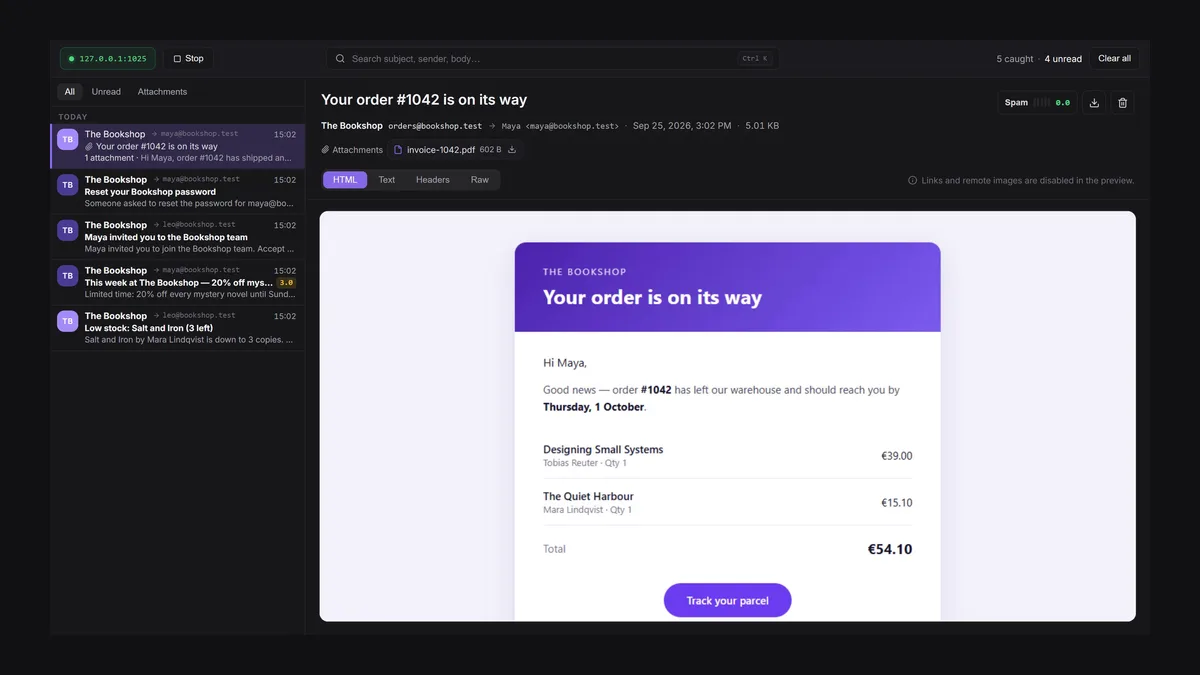
The alternative is to stop running a separate service at all. Apiboo has a mail catcher built in, next to the API client, the database manager and the terminal: click Mail catcher on the rail, click Start, and the status changes to 127.0.0.1:1025 with a green dot. Point your app at host 127.0.0.1, port 1025, no TLS, any username and password, and every email it sends lands in the inbox inside Apiboo. Nothing is delivered to anyone. It listens on 127.0.0.1 only, so other computers on your network cannot send to it, and it can start with Apiboo if you want it always on.
If port 1025 is taken, the toolbar says so, naming Mailpit and MailHog as the usual suspects, and you stop the other program or pick another port in the settings. A message can be up to 25 MB.
The inbox
The inbox is built for the questions you actually have while testing:
- Messages grouped by day, with sender, recipients, subject, attachment count and the start of the text; new mail appears at once.
- Four tabs per message: HTML on a white card (scripts do not run, links do not open, remote images are not loaded, so the email cannot phone home), Text, Headers as a key/value table, and Raw source.
- Search across subject, sender, recipients and the first 200 characters of the text; filters for Unread and Attachments.
- Attachments listed with their size, each with a Download button; Download .eml saves the whole message.
- Keep the last 50 to 5,000 messages (default 500); older ones are deleted automatically. Everything is stored on this computer only, never synced, and removed when you sign out.
The spam check
The part neither MailHog nor Mailpit does: every caught message gets a spam score, computed offline against 26 rules. They cover missing or malformed headers, a From domain that differs from the sender, bulk mail without List-Unsubscribe, subjects in capitals, HTML without a plain-text part, tracking pixels, URL shorteners, links whose text shows a different domain, executable attachments, and more. A score of 5.0 or more gets a red SPAM badge in the list; 2.0 to 4.9 shows in amber. Click the Spam pill on an open message for one card per rule that matched, with its points, the evidence and what to improve. Real spam filters weigh these signals differently, so treat it as a guide for fixing your templates before a customer’s filter does.
Testing a password-reset email
The everyday loop, with the mail catcher running:
- Set your app’s SMTP host to 127.0.0.1 and port 1025 in its development configuration.
- Send the reset request from the API client in the same window: POST /auth/reset with the test user’s address.
- Switch to the mail catcher: the message is at the top. Open the HTML tab to see what the user sees, and the Text tab to check the fallback exists.
- Open Headers to confirm From, Reply-To and List-Unsubscribe are what you intended, and check the spam score.
- Copy the reset link from the Raw tab and paste it into a request to finish the flow.
Honest limits
- It needs the desktop app, and it catches mail on your machine only; a shared catcher for a whole team or a CI server is Mailpit’s job.
- There is no HTTP API for automated tests to query the inbox.
- It is an inbox, not a relay: nothing is ever forwarded to a real mailbox.
Try it with your own work
Open Mail catcher on the rail, click Start, point your app at 127.0.0.1:1025 and trigger a password reset. The message, its headers and its spam score are on screen before you have switched windows.
Download Apiboo for Windows, macOS or Linux at apiboo.com/download. It is free to start, with no card and no account: every tool runs on your own machine, and you only sign in when you want sync or a team.